
Are you looking for a solution to transfer Gmail to Zimbra? If yes, then you are on the right page. Here I will show you one of the best and most amazing solutions to migrate Gmail mailbox data easily.
As you know, Gmail is the most popular email services that is used by millions of people and businesses. It works with various email apps like MS Outlook, Apple Mail, Thunderbird, and mobile devices.
On the other hand, Zimbra is an open-source server and collaboration suite that includes email, contacts, calendars, tasks, briefcase, and chat. It is often used by organizations as an alternative to expensive business email servers. Zimbra provides fast, secure, and flexible communication features with a modern web interface.
Reasons to Transfer Gmail to Zimbra Email Client
- Many organizations prefer Zimbra because with Gmail, data is stored on Google servers. Whereas, Zimbra can be hosted on-premises or on a private cloud and they have a full control on their mailbox.
- Zimbra offers advanced security features, encryption options, and complete control over who accesses the data.
- Since Zimbra can be installed on your own server, that is why, it a preferred choice for many business owners. So that, they don’t have to depend on third-party servers.
- Some users prefer Zimbra Desktop because it provides offline access to emails without depending on the Gmail web interface.
How to Import Gmail to Zimbra Manually?
- Open Gmail, go to Setting>> See all settings and enable IMAP under the Forwarding and POP/IMAP tab.
- Open your Google Account and go to the Security section to turn on 2-Step Verification.
- After that, open the App Passwords page in your Google Account and generate a new password.
- Copy the 16-digit app password that appears on the screen.
- Now open Zimbra Desktop on your computer and click on Add New Account.
- Select Gmail or choose the IMAP option from the list.
- Enter your Gmail email address and paste the app password in the password field.
- If using IMAP manually, enter:
- imap.gmail.com (IMAP server), port 993, SSL/TLS,
- smtp.gmail.com (SMTP server), port 465 or 587
- Click Save and wait for Zimbra to sync your Gmail emails automatically.
After that, you can access your Gmail emails in your Zimbra mailbox.
Limitations of the Manual Process
- Syncing large Gmail mailboxes may take hours or days.
- Some labels may not appear correctly in Zimbra.
- Attachments may fail to transfer during transfer.
- Might be a complex procedure for new users.
How to Transfer Gmail to Zimbra Automatically?
Since Gmail and Zimbra are the two different platforms and also, there is no direct method available to export Gmail mailbox tot Zimbra. Therefore, it is suggested to try Gmail Backup Tool to accomplish the task. It comes with various advanced features. It offers bulk option to move multiple emails in one click. The software maintains the folder structure and meta data of emails throughout the process.
The best thing about this program is that it offers a free demo version that allows users to understand the working of the software before buying the tool. Also, the software can be installed on all Windows OS such as Win 11, 10, 8, 7, etc.

Steps to Migrate Emails from Gmail to Zimbra are:
- Download and run the software on your PC.
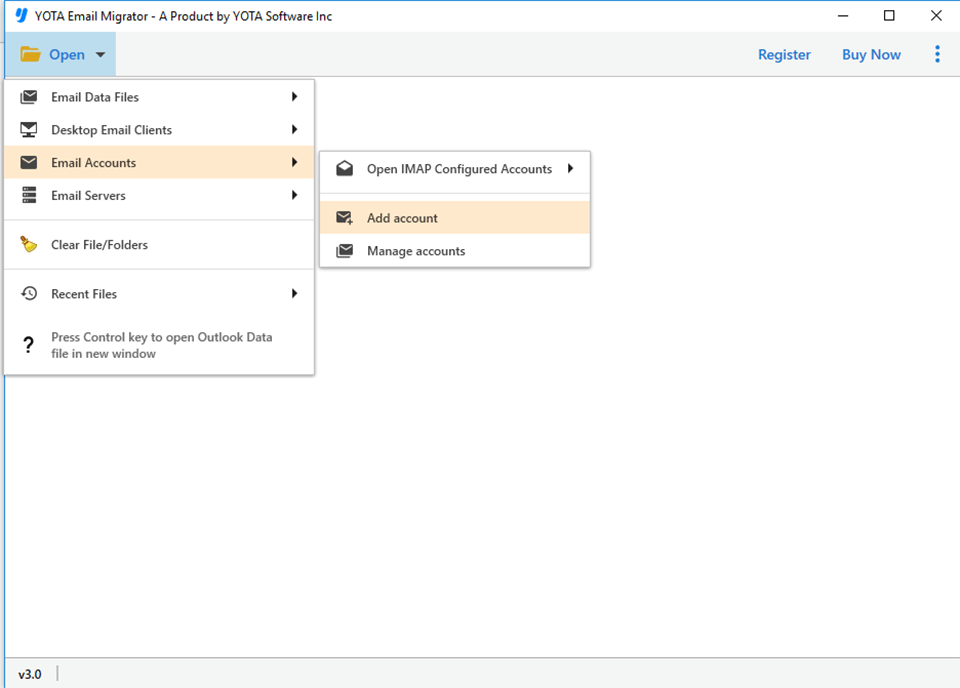
- Click on Open>> Email Accounts>> Add Accounts.
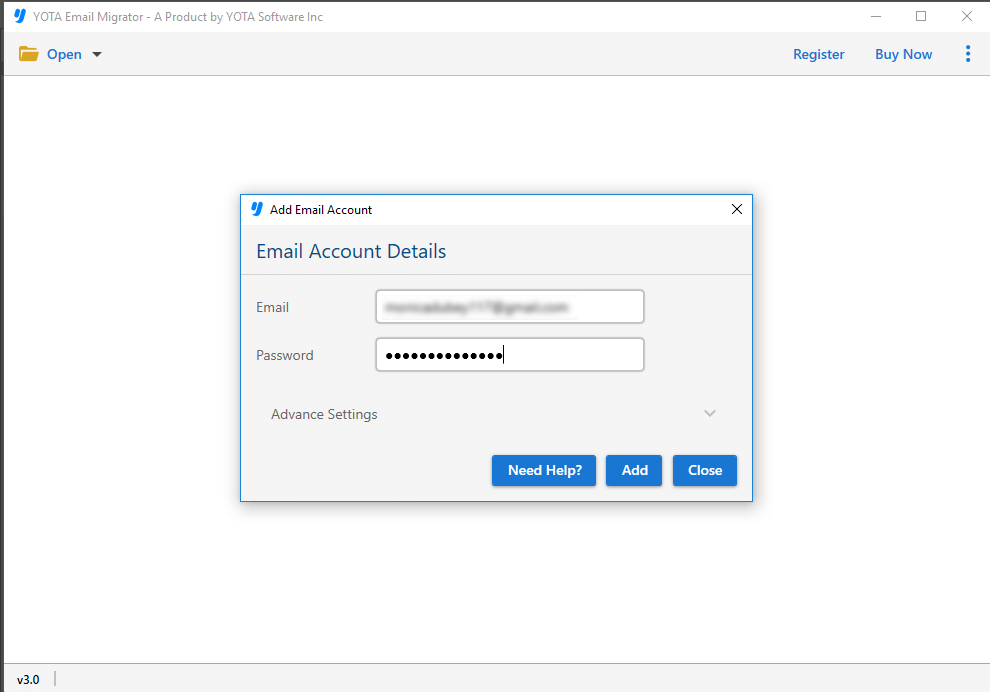
- Now enter your Gmail login credentials and sign in using the tool.
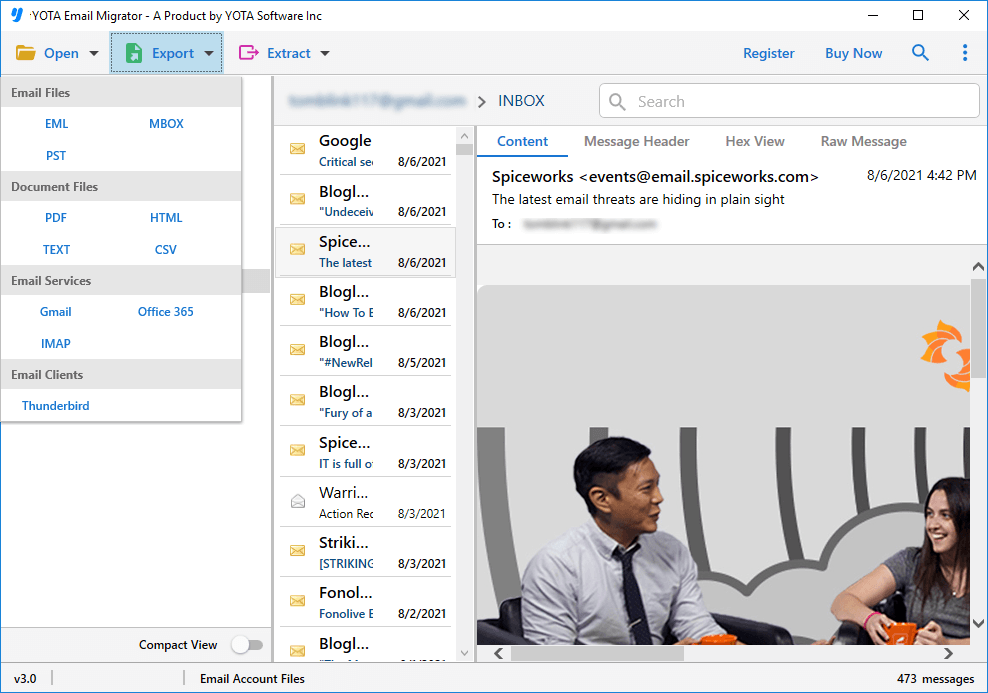
- Next, all Gmail folders will appear on the screen. Select the required data.
- Now, go to Export and choose IMAP from the list.
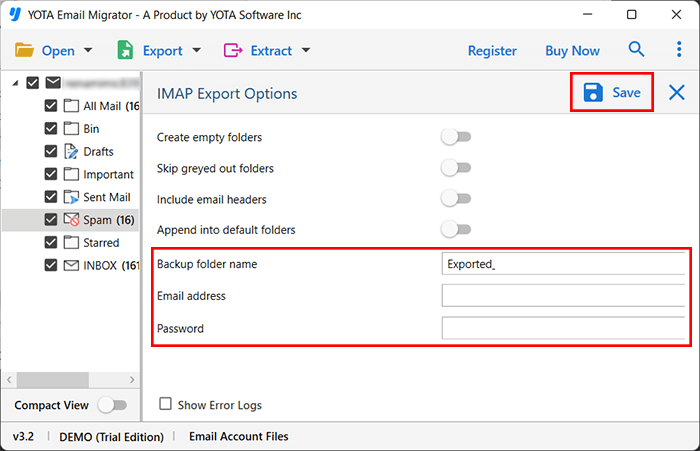
- After that, enter Zimbra login credentials and hit the Save button.
And, you are done!
Key Features of the Professional Tool
- Performs complete data conversion of Gmail mailboxes
- Offers dual modes – Selective and bulk email migration
- Retains folder hierarchy, styling, formatting, attachments, etc.
- 100% standalone software to convert Gmail data to Zimbra-supported format
- No file size or content length limitations
- Totally safe and secure solution for Gmail to Zimbra migration
- Transfers data accurately without any loss of information
- Comes with a free demo version to try the tool before purchase
Conclusion
In this article, we discussed every step to transfer Gmail to Zimbra in detail. We explained how to export all Gmail mailbox data to Zimbra using the fastest and most reliable software packed with advanced features. Users can also download the demo version for free to export 10 items from the Gmail folder. I hope you found this guide helpful.