
In this article, we will cover both manual and professional methods to export emails from Zoho Mail to Gmail. Email platforms are not only communication tools but they are the store house for emails, contacts, tasks and other important information. Many users want to move from Zoho to Gmail for better collaboration and accessibility. However, it is not a simple task to move emails from one platform to other. Without proper guidance, one might lose his crucial data, especially for large mailboxes or business accounts.
In this guide, we have shared the safest methods to transfer Zoho mailbox using either manual approach or with direct transfer tool.
Why Do You Need to Transfer Zoho Emails?
Zoho Mail is one of the reliable and popular email service. It offers clean interface and strong privacy options for businesses but users want to migrate to Google Mail for its better integration with Workspace and cross device synchronization. Several reasons for the migration are:
- Gmail offers better collaboration features.
- You will get a secure cloud backup for important Zoho emails.
- Many third-party apps and CRM tools work better with Gmail.
How Transfer Zoho Emails to Gmail Manually?
The manual method works only for small mailboxes. You can transfer Zoho emails manually using a desktop email client like Microsoft Outlook.
- Open Microsoft Outlook on your computer.
- Click on File and select Add Account.
- Enter your Zoho email address and password.
- Make sure IMAP access is enabled in your Zoho Mail settings.
- Now, add your Gmail account in Outlook using Add Account option.
- If Gmail asks for verification, create an App Password from your Google account.
- After both accounts are added, you will see Zoho and Gmail folders in Outlook.
- Open a Zoho folder, such as Inbox or Sent Items.
- Select the emails, then drag and drop them into your Gmail mailbox.
Limitations of the Manual Method
- Outlook might crash when handling large Zoho mailboxes.
- Large attachments might fail to sync properly.
- Folder structure becomes disrupt during drag-and-drop process.
- The process is slow and complex for non-technical users.
How to Export Zoho Email to Gmail Professionally?
Zoho Backup Tool is a trusted solution that helps you to migrate emails from Zoho accounts. It maintains the folder structure and meta data of emails throughout the migration process. The software allows to convert Zoho to PST, EML, MBOX, PDF, TXT, and other formats. It has been designed with simple interface and advanced features that lets you export your data in few clicks. You can migrate large number of emails in bulk. Try the demo version and check the working features of the tool.

Steps to Migrate Zoho Email to Gmail with Attachments are:
- Download and install the software on your system.
- Go to Open>> Email Accounts>> Add Accounts.
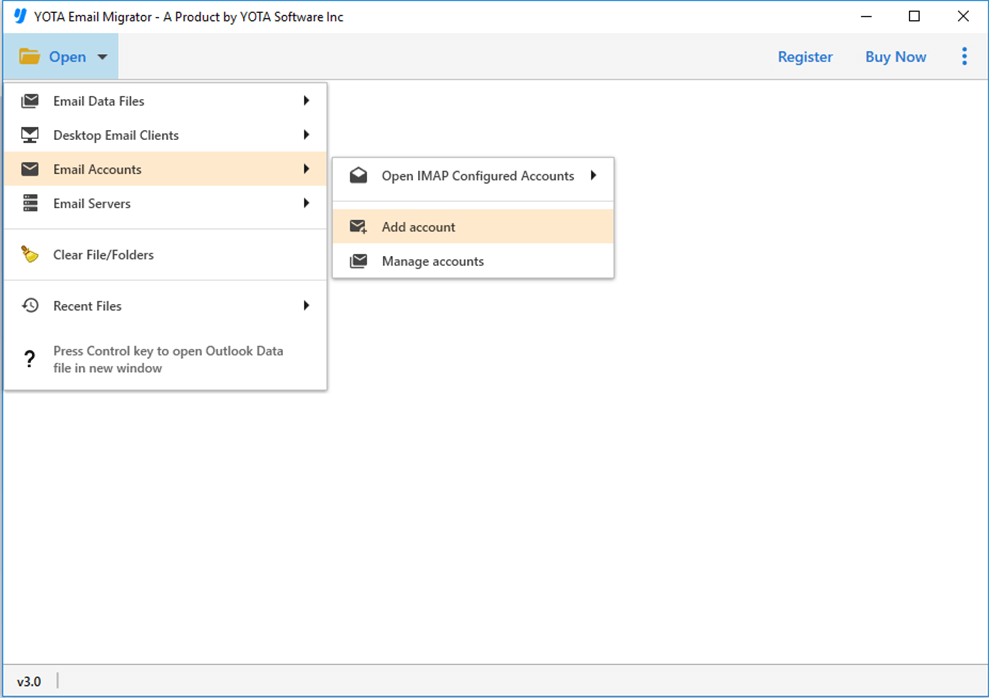
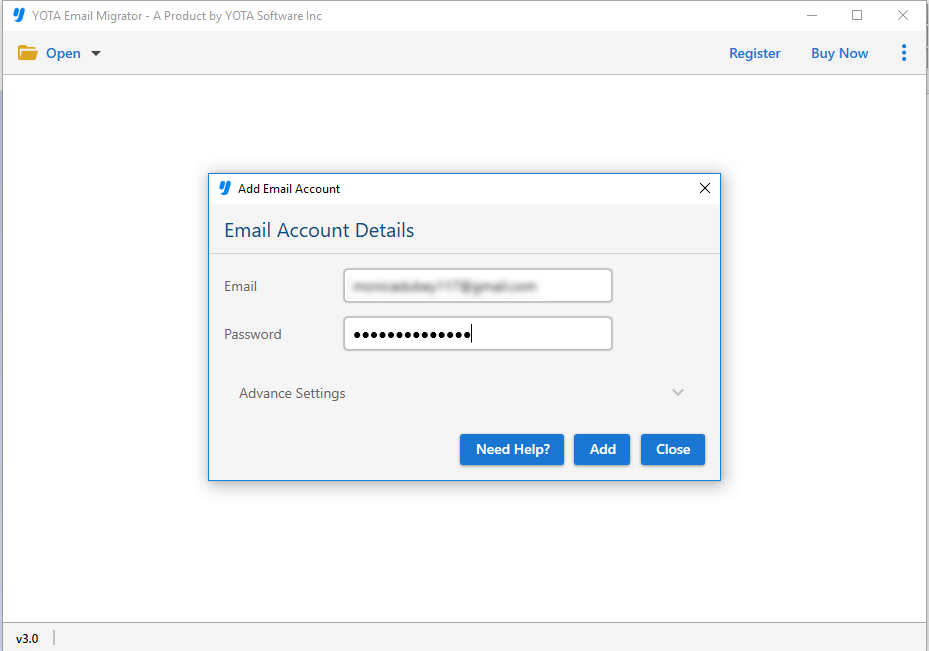
- Enter your Zoho login credentials.
- Choose the folders you want to migrate.
- Click the Export tab and select Gmail from the saving options list.
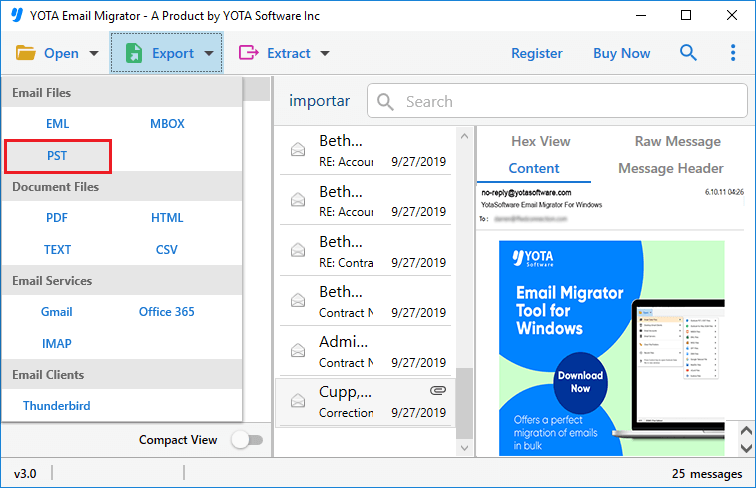
- Enter the Gmail login credentials and hit the Save button.

That’s it! The tool will start exporting your data with ease.
Key Benefits of Using a Professional Method
- Ability to import Zoho Mail emails directly into Gmail accounts
- Supports all types of Zoho mailboxes, including large and partially inaccessible folders
- User-friendly and flexible interface that can be easily operated by all users
- Allows users to migrate emails along with attachments to Gmail securely
- Preserves meta properties and maintains folder structure
- Filter options to migrate a required number of emails based on specific criteria
- Provides a safe migration process without data loss
- Compatible with all versions of Windows OS such as 11, 10, 8.1, 8, 7, Vista, and XP
Frequently Asked Questions
Can I export all my attachments along with the emails?
Yes, you can easily migrate attachments with your emails using the suggested software.
Can I transfer 45 GB of data in bulk?
Yes, the tool is capable of migrating large number of emails in batch mode without any hassle.
Conclusion
In this article, we have discussed the 2 tried and tested solution to export Zoho Mail to Gmail. Although the manual method is free of cost, but it comes with various drawbacks. You may lose your data during the process. To migrate emails with high accuracy, it is advisable to use the dedicated tool. This way you can move your complete mailbox items without losing any data.