
Are you searching for an efficient way to transfer Gmail emails to Hotmail? If yes, then this guide will help you. Many users want to move from Gmail to Hotmail due to better integration with Microsoft services and improved security features. This guide will explain the two best methods including manual method as well as a direct automated tool. Here, you will also learn exact steps and limitations of the methods.
Overview of Hotmail
Hotmail, now Outlook.com, is a secure, user-friendly, and feature-rich email service by Microsoft. It offers smooth integration with Office 365, OneDrive, Skype, and Teams. By moving Gmail mailbox to Hotmail, you can enjoy better organization and other benefits.
Reasons to Transfer Gmail to Hotmail
- Better integration with Microsoft ecosystem.
- Large storage space and attachment support.
- Easier access from Windows and Microsoft apps.
- Improved productivity and organization.
How to Transfer Gmail Emails to Hotmail Manually?
- Log in to your Hotmail account.
- Go to Settings >> View all Outlook settings.
- Click Mail >> Sync email.
- Under Connected accounts, choose Gmail.
- Enter your Gmail email address and app password.
- Outlook.com will automatically use Gmail’s IMAP server settings.
- Once connected, Hotmail will begin syncing all Gmail emails.
When the process completes, your Gmail folders and messages will appear in Hotmail.
Limitations of Manual Method
- Process can be slow for large mailboxes.
- You may lose some folders or attachments.
- It requires correct IMAP and app password setup.
- No backup or error recovery options.
How to Import Gmail to Hotmail Automatically?
If you want a fast, simple, and reliable way to transfer all Gmail emails with attachments to Hotmail, using an automated tool is the best option. Gmail Backup Wizard is a secured and user-friendly software that allows to migrate emails without any technical skills. You can choose specific folders, maintain structure, and avoid errors easily.
Plus, the software is capable to export bulk emails at once. This robust utility enables you to export complete mailbox items including emails, attachments, calendars, contacts, etc. It comes with free demo version that will let you move 10 emails and you can check the working features of the software.

Steps to Export Gmail to Hotmail with Attachments are:
- Install and launch the software on your Windows PC.
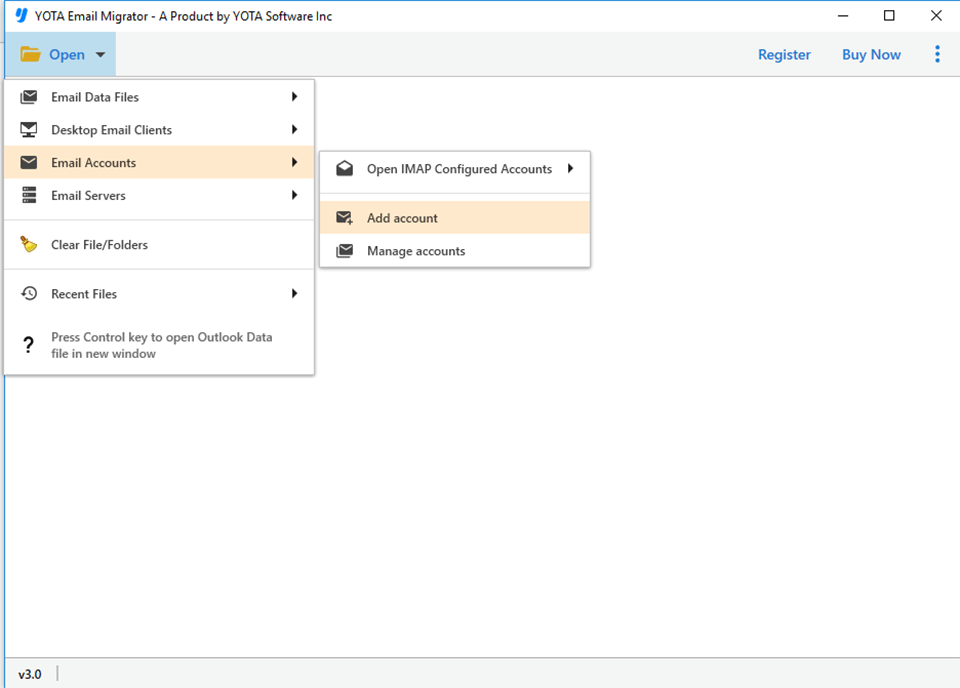
- Go to Open>> Email Accounts>> Add Accounts.
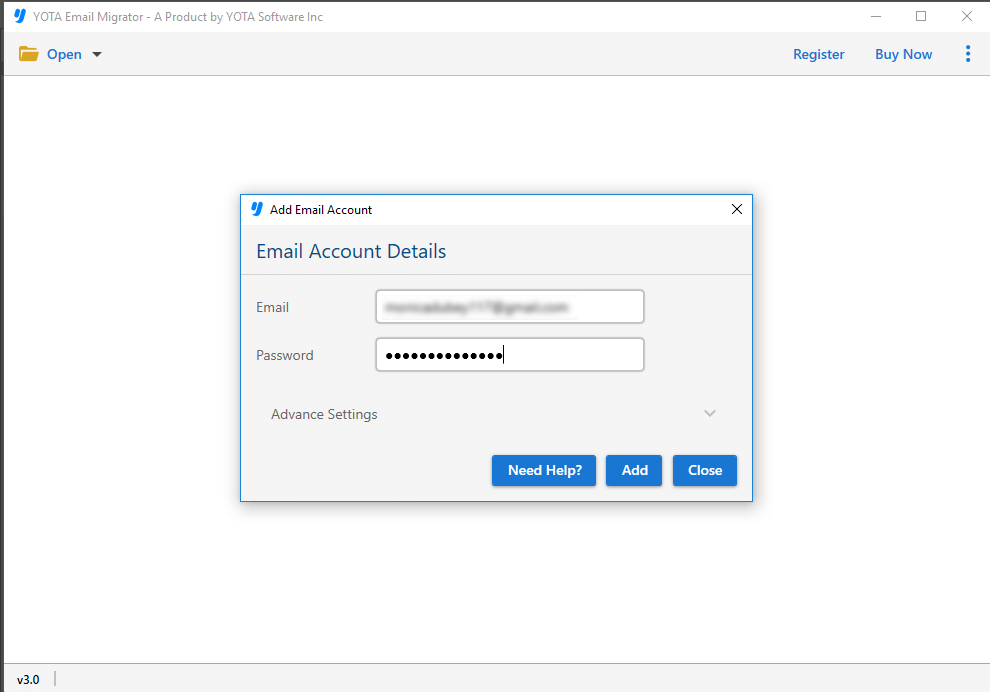
- Enter your Gmail login details.
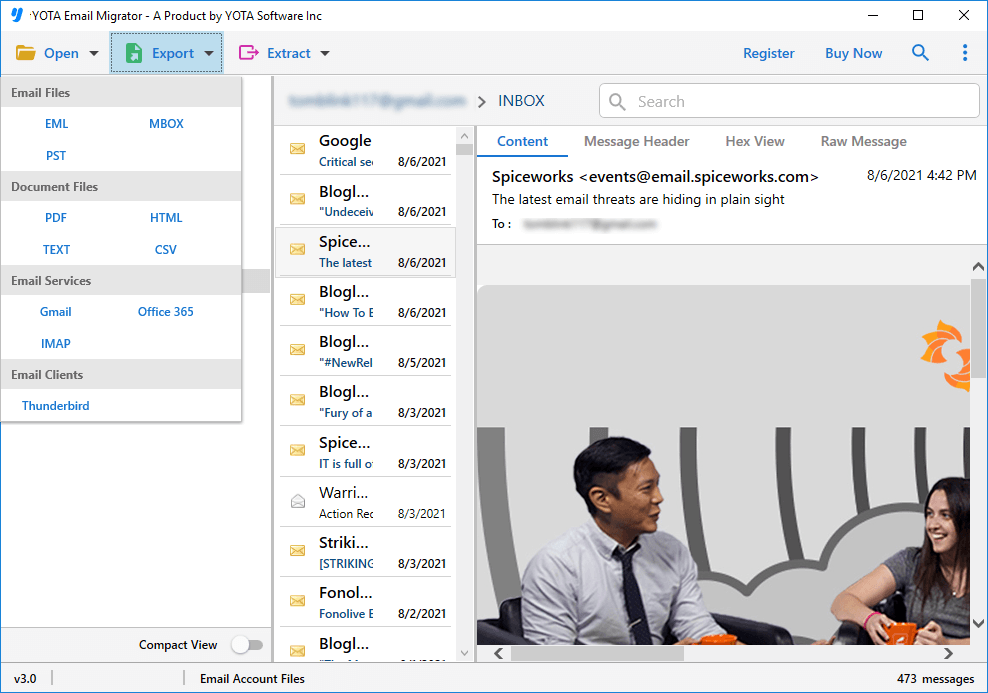
- The tool scans and loads all Gmail folders automatically.
- Next, click on Export and select IMAP as destination option.
- Enter your Hotmail login credentials. Click the Save button.
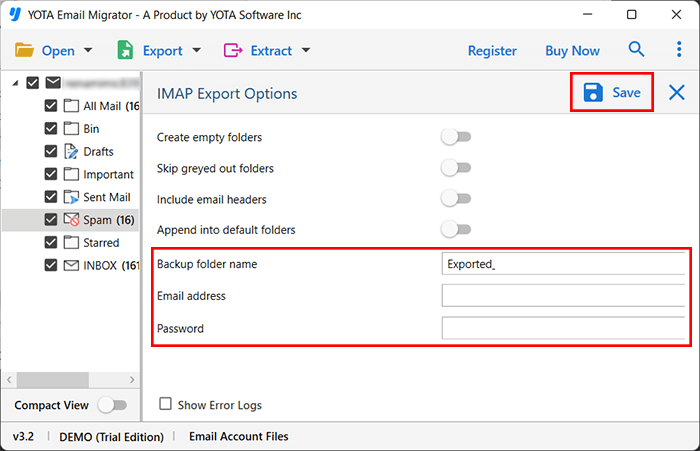
That’s it! All your mailbox data will be imported to your Hotmail account with attachments and full accuracy.
Features of the Software
- Easily move Gmail emails to Hotmail without losing any single data.
- Supports complete as well as selective email transfer.
- Maintains folder structure, hierarchy metadata, and attachments.
- Date filter option is provided for exporting emails from a specific period.
- Supports to export multiple emails at once.
- Works on all Windows versions: 11, 10, 8.1, 8, 7, etc.
- Simple and clean interface for beginners as well as professionals.
- Free version allows limited email transfers per folder.
Conclusion
Now, we hope that this guide helped you understand how to transfer Gmail emails to Hotmail using both manual and automated methods. The manual method works fine for few email transfers, but you may lose your valuable data or it might take longer time for large mailboxes. That is why, the recommended automated tool is the safest way to export data accurately and quickly along with attachments.
Frequently Asked Questions
Does the manual method moves all Gmail folders to Hotmail?
The manual method exports most folders, but sometimes labels, custom folders, and large attachments may not migrate perfectly.
Are my Gmail emails safe during migration?
Yes. Both manual and automated methods are secure, but automated tools offer better safety, full structure retention, and no risk of data loss.