
If you are wondering how to transfer Gmail emails to Webmail, then you do not need to worry anymore. In this segment, we have discussed different approaches that will help you move your Gmail data to a Webmail account with ease.
Webmail is basically designed for business and personal users to manage day-to-day emails in a simpler way while enhancing productivity within the organization. It includes options such as search bar, email list, email details, navigation bar, folders, compose options, and more. Moreover, team members can easily handle their business emails in Webmail without downloading another application, making communication and collaboration more convenient.
Reasons to Export Gmail to Webmail
- It gives more control over email storage and server settings.
- Users want to export to Webmail to manage business domain emails professionally.
- It keeps messages in the hosting server.
How to Transfer Gmail Emails to Webmail Manually?
- Open Gmail and go to Settings.
- Click See all settings and open the Forwarding and POP/IMAP tab and enable IMAP.
- Open your Webmail account (cPanel Webmail or hosting Webmail).
- Go to Settings or Email Accounts and copy the IMAP details (server name, port, SSL).
- Open Outlook and add your Gmail account using IMAP.
- Now again, add your Webmail account using its IMAP settings.
- After both accounts appear, drag and drop Gmail folders/emails into the Webmail account.
- Wait for the sync to complete and then check emails in your Webmail inbox.
Limitations of Manual Method
- Takes a lot of time if you have large folders.
- Might be complex for non-technical users.
- Emails may not sync properly, especially large attachments.
- No option to transfer data in bulk.
- High chance of data loss or missing emails during migration.
How to Migrate Gmail to Webmail Directly?
Try Gmail Backup Tool to transfer emails from Gmail to your webmail account. It is a reliable and safest way to move your complete mailbox items. The application is simple, friendly, and reliable. With its help, any user can batch transfer Gmail emails to a Webmail account at once along with attachments. The tool includes 15+ saving options and IMAP is one of them. You simply need to enter Webmail IMAP details along with email address and password. After this, the tool will directly import Gmail emails to your Webmail account with accurate results.
Moreover, the application offers various features and filters that help users transfer emails to Webmail according to their requirements. Download its free demo now and transfer the first 10 emails to Webmail free of cost.

Working Steps to Transfer Gmail to Webmail are:
- Download and run the software on your system.
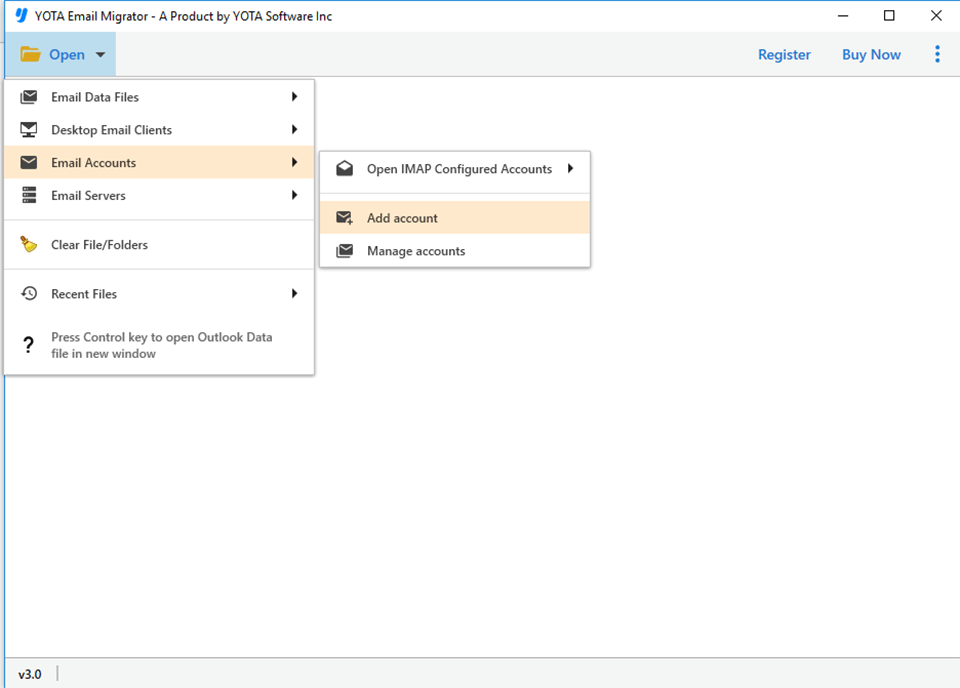
- Go to Open >> Email Accounts >> Add Account.
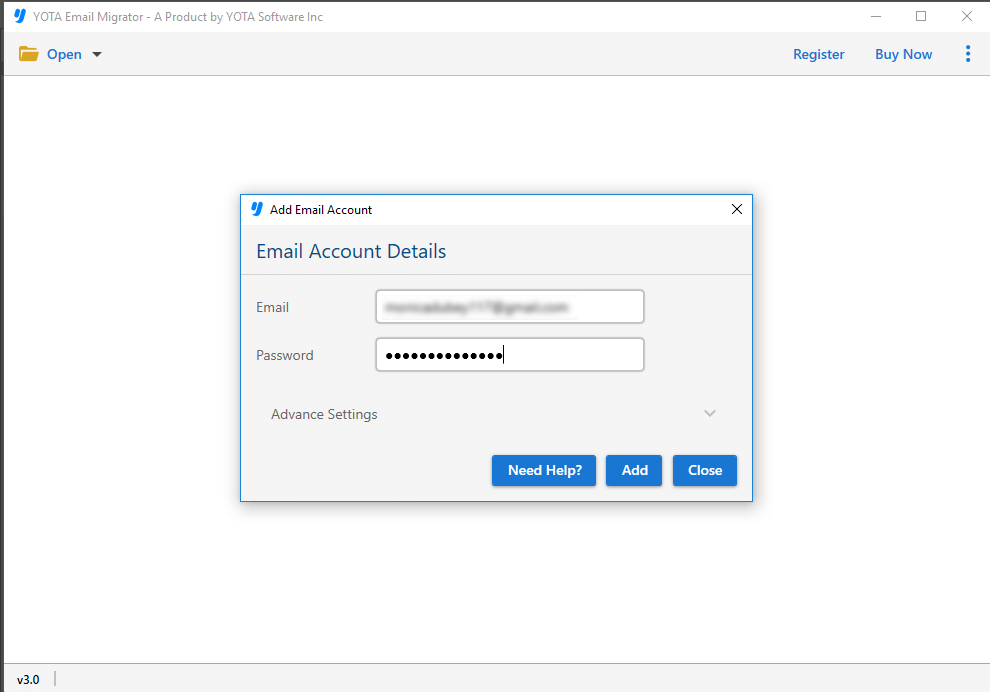
- Add your Gmail account using login credentials.
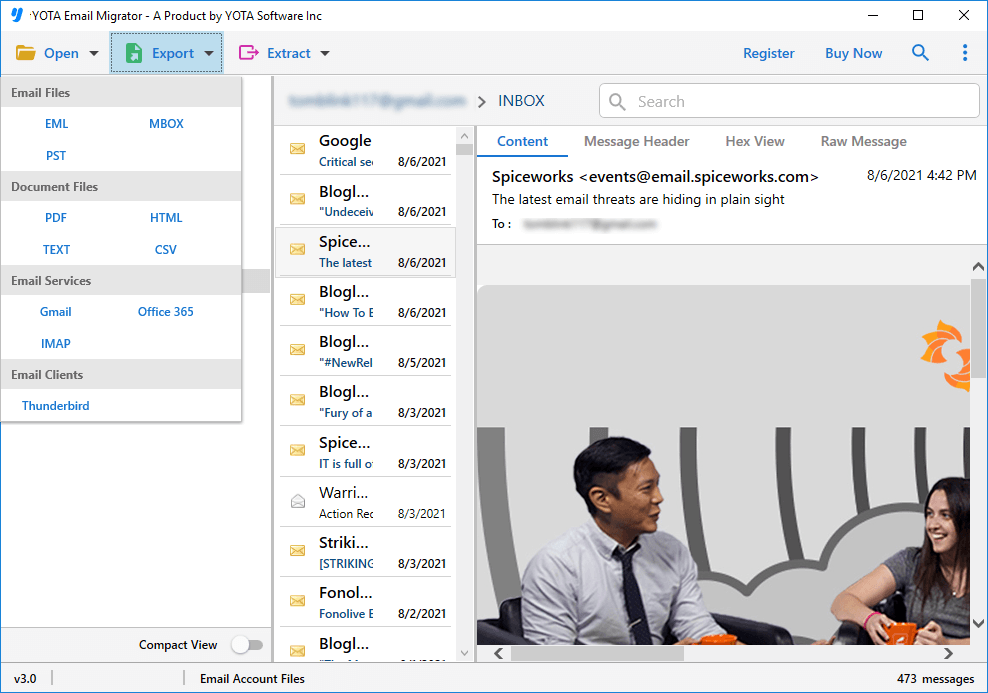
- The tool will load Gmail mailboxes with checkboxes. Select or deselect folders as needed.
- Go to Export and choose IMAP as saving option.
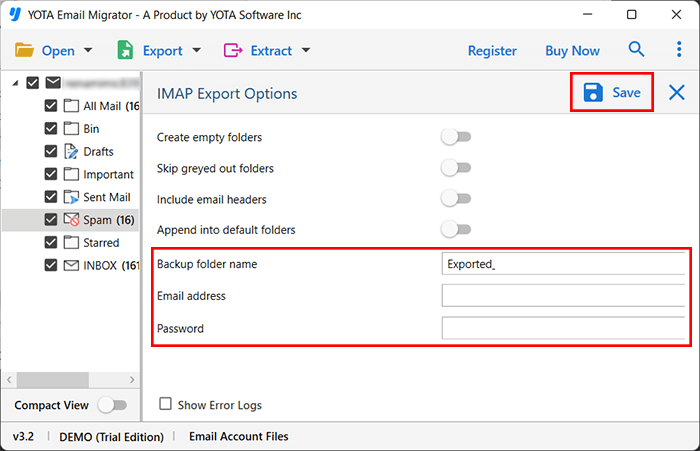
- Enter your Webmail login details then click Save.
Done. You can easily access your Gmail emails in your Webmail account with attachments.
What are the Benefits of using the Professional Software
- Migrate Gmail emails to Office 365, Zoho, IMAP, and other web or cloud email services.
- Transfer emails using single and batch mode.
- Export Gmail emails to PST, PDF, MBOX, HTML, CSV, and others formats directly.
- Keep the folder structure intact and maintain 100% data accuracy.
- Date Range Filter is also available to move only selected emails between specific period of time.
- The tool works on all versions of Windows, including Windows 11.
Conclusion
In this write-up, we discussed the best techniques to transfer Gmail to Webmail. The first method is free but it is lengthy and has complex steps. That is why, it is not suitable for non-technical users. The other method i.e. professional solution is cost-effective, provides reliability, and gives accurate results. Anyone can use it and perform the process without difficulties due to its simplified panel. Also, it comes with a trial version so you can check the working process for free. You can also transfer first 10 emails and attachments to Webmail at no cost.