
In this write-up we will discuss the best ways to export Gmail emails to PDF format. If you are also looking for the same, then this blog can help you. Gmail is one of the popular email service used by people to send or receive their emails. But, in some situations, users want to save data in .pdf format. We will walk you through manual method, as well as an efficient automated solution to convert your mailbox quickly and safely.
Reasons to Save Gmail Emails as PDF
PDF is one of the most trusted and universally accepted formats for printing, legal documentation, and business communication. There are several reasons:
- You can store your important data locally and access it anytime.
- It helps you in printing emails as PDFs keep original formatting intact.
- PDF files allows you to share the documents easily to colleagues or clients.
- You can save your emails and attachments and keep them safe for the long term.
- Keeping a PDF copy of invoices, agreements, or receipts ensures they remain tamper-proof.
How to Print Gmail Emails as PDF Manually?
Google has in-built option to download individual email in PDF file. You can use Print option to convert one or two emails.
Steps to Save Gmail Emails as PDF Manually are:
- Open Gmail and select the email you want to download.
- Click the three-dot menu on the top right of the message.
- Choose Print.
- When the print preview opens, change the destination printer to Save as PDF.
- Click Save and browse the location to store the PDF file.
That’s it!
Drawbacks of Manual Method
- Manually saving messages to PDF takes a lot of time, especially for many emails.
- It can cause formatting issues that need extra fixing.
- Important details like timestamps and sender information may be lost.
- It is not suitable for large mailboxes because it does not support bulk conversion.
- You may lose your attachments during the process.
How to Export Gmail Emails to PDF in Bulk?
Try Gmail to PDF Converter to backup Gmail emails, attachments, calendars and other data into PDF files with accuracy. It allows you to convert bulk data without any extra efforts. The software also have preview feature so that you can view your mailbox before starting the process.
Moreover, it lets you to save attachments separately while downloading emails. This utility is capable of maintaining folder structure and meta elements of emails like To, From, Subject, or Body fields, etc. With easy-to-use panel, the tool is designed for both technical and non-technical users. Download the free Demo version now to test the working features of the tool.

Steps to Save Gmail Emails as PDF File with Attachments:
- Download and Install the tool on your PC.
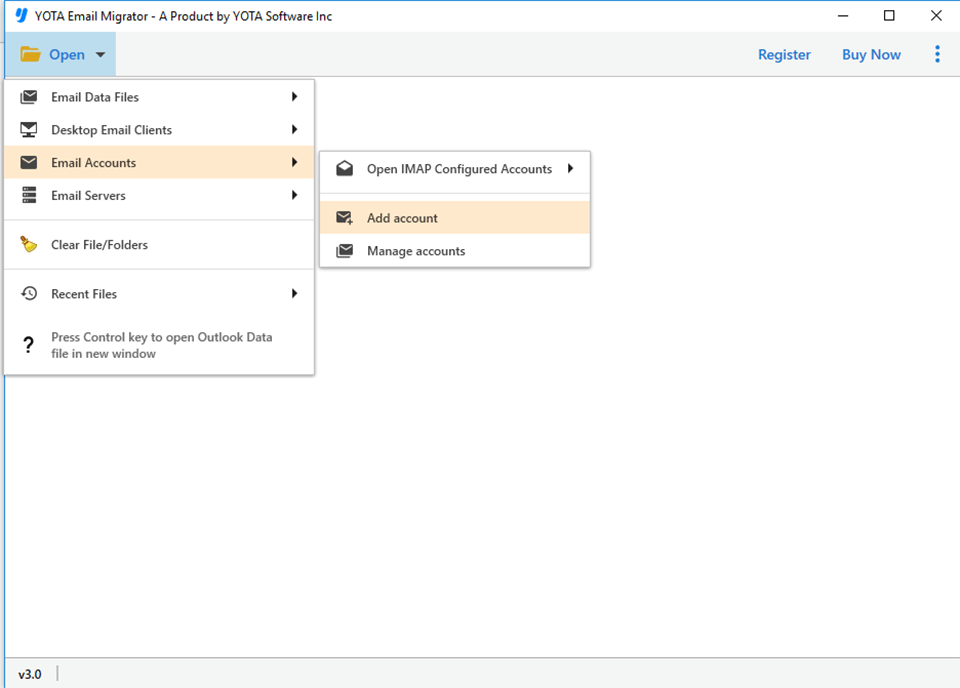
- Click on Open>> Email Accounts>> Add Account.
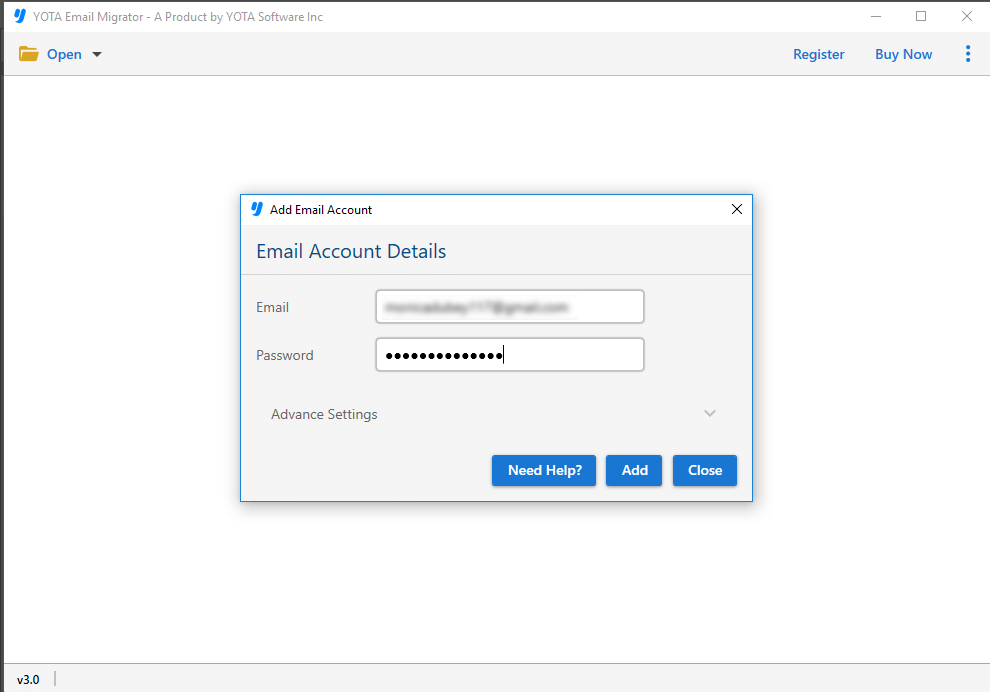
- Enter Gmail login details correctly.
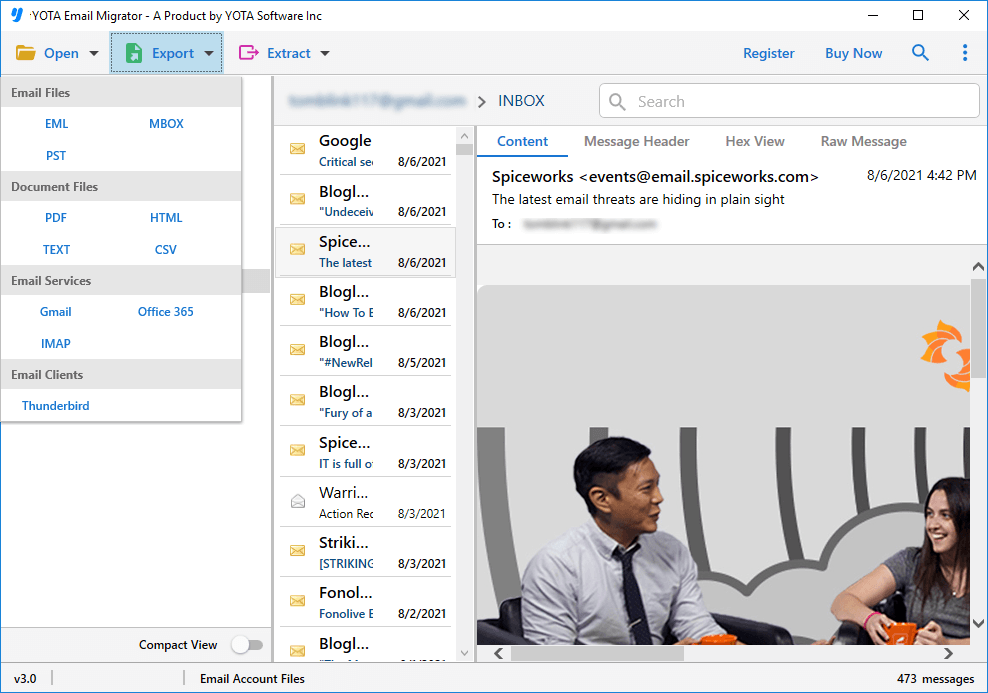
- Then, go to Export and choose PDF as saving option.
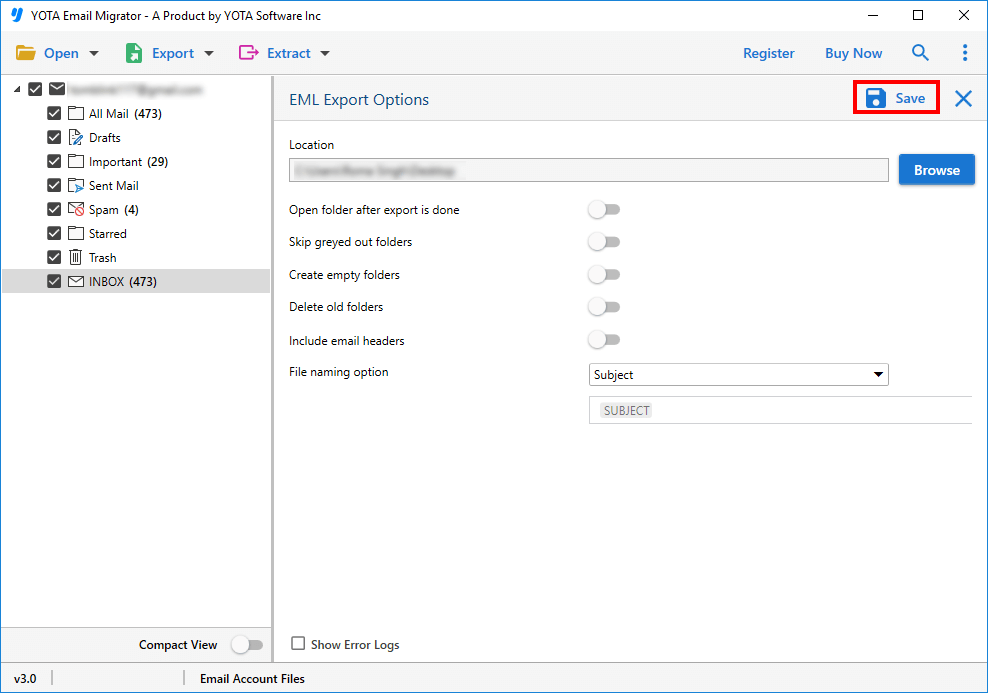
- Now, browse the location and hit the Save button to start the process.
Done! You have successfully converted your mailbox to PDF format in few simple clicks. Additionally, you can export Gmail emails to PST, MBOX, EML and many other formats.
Key Features of Gmail to PDF Export Tool
- You can save Gmail data to different file formats and cloud services easily.
- It removes duplicate emails during the backup process.
- You can save PDF attachments separately while exporting Gmail to PDF.
- There is an option to backup Gmail emails without downloading attachments.
- The tool also lets you pause and resume your Gmail backups.
- You can choose where to save the exported PDF files on your PC, desktop, hard drive, etc.
- A date range filter is provided that help you to download Gmail emails from a specific time range.
Conclusion
To sum up, this blog explains different ways to save Gmail emails as PDF format using manual as well as professional method. So, if you need to download few emails only, that manual method is enough. But, if you have large mailbox to export and you want to save entire mailbox at once, it is recommended to use automated tool. It is the ideal solution for bulk conversions of emails without losing any data, formatting or attachments. Now its up to you to choose the method that suits you best but, make sure to follow each step carefully to avoid any data loss.