
Many people want to move emails from Gmail to Office 365 account. Migrating data has become a common need for individuals and professionals. If you are also looking for the easy method, then this is the right blog. This guide explains the two best methods to export Gmail emails to Office 365. One is manual method and other one is automated software for effortless approach.
Why Do Users Migrate from Gmail to Office 365 Account?
- Office 365 has better integration with Outlook, Teams, OneDrive, Excel, and more.
- Organizations can manage all accounts from a single admin panel, making onboarding, offboarding, and monitoring easier.
- It provides features like data loss prevention, MFA, retention policies, and advanced threat protection.
How to Transfer Gmail Emails to Office 365 Manually?
There are two manual solutions that you can use to export your data to Office 365 account. In the below sections, we will discuss each of them step-by-step.
Method 1: Export Data using Google Takeout
Step 1: Prepare to Migrate
- Make sure your Gmail domain is verified.
- Save your important Gmail data like emails and contacts in one place.
- Check that your internet connection is stable.
Step 2: Export Gmail Data
- Go to Google Takeout and sign in.
- Select the Gmail data you want to move. Click Next.
- Choose the export settings and click Create Export.
- Download the exported file to your system.
Step 3: Generate a CSV File
- Open Microsoft Excel.
- Create a list of all Gmail users and their credentials.
- Save this list as a CSV file.
Step 4: Set Up Gmail to Office 365
- Open the Exchange Admin Center and log in as admin.
- Go to Recipients and choose Migration.
- Click Migration endpoints > New.
- Select IMAP and enter Gmail IMAP server details.
- Save the endpoint and let the accounts sync.
Step 5: Migrate Gmail to Office 365
- After creating the migration endpoint, go back to the Admin Center.
- Upload the CSV file and start the migration batch.
- Wait for the emails to transfer to Office 365.
Step 6: Update DNS Records
- Change your DNS settings to Office 365.
- Update the MX Records so new emails reach your Office 365 mailbox.
Method 2: Migrate Gmail Data to Outlook 365 using Outlook
Step 1: Enable IMAP in Gmail
- Open Gmail settings.
- Go to Forwarding & POP/IMAP.
- Turn on IMAP access and save.
Step 2: Configure Gmail in Outlook
- Open Outlook on your computer.
- Add a new account and enter your Gmail details.
- Let Outlook sync your Gmail mailbox.
Step 3: Configure Office 365 in Outlook
- Add your Office 365 account in Outlook.
- Drag and drop emails from the Gmail folder to the Office 365 mailbox.
- Wait until Outlook uploads everything to the cloud.
Limitations of Manual Method
- Does not support bulk migrations.
- Required Google Admin Console to perform all the steps.
- Lots of technical steps are need to be followed.
- No direct option for attachments migrations.
- Connection failures or large mailboxes can cause data loss.
To overcome all those limitations, try the professional solution.
How to Export Gmail to Office 365 Automatically?
For a faster and safer way to move your data, use a professional Gmail Backup Tool. It is the easiest option to transfer your Gmail mailbox to Office 365 directly. The software supports to migrate emails, attachments, contacts, calendars and other data. Plus, it keeps everything intact in its original format. You don’t need to be technical expert as the user-interface is simple and intuitive.
This reliable utility is capable to export bulk emails with 100% accuracy. It maintains the folder structure and keep your data safe. The tool does not save any of your login details in its data base, so it is highly trusted software among the experts. The program also offers a free demo, so you can test the process and see how it works before purchasing the tool. Download the demo now.

Steps to Export Gmail Emails to Office 365 in Bulk are:
- Download and Install the software on your PC.
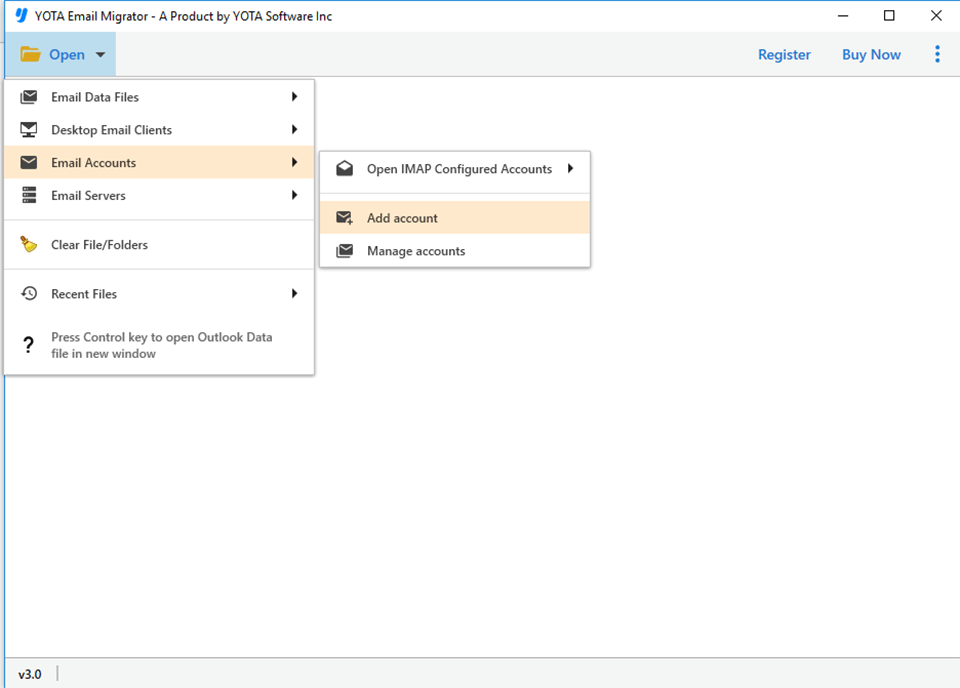
- Click on Open>> Email Accounts>> Add Account option.
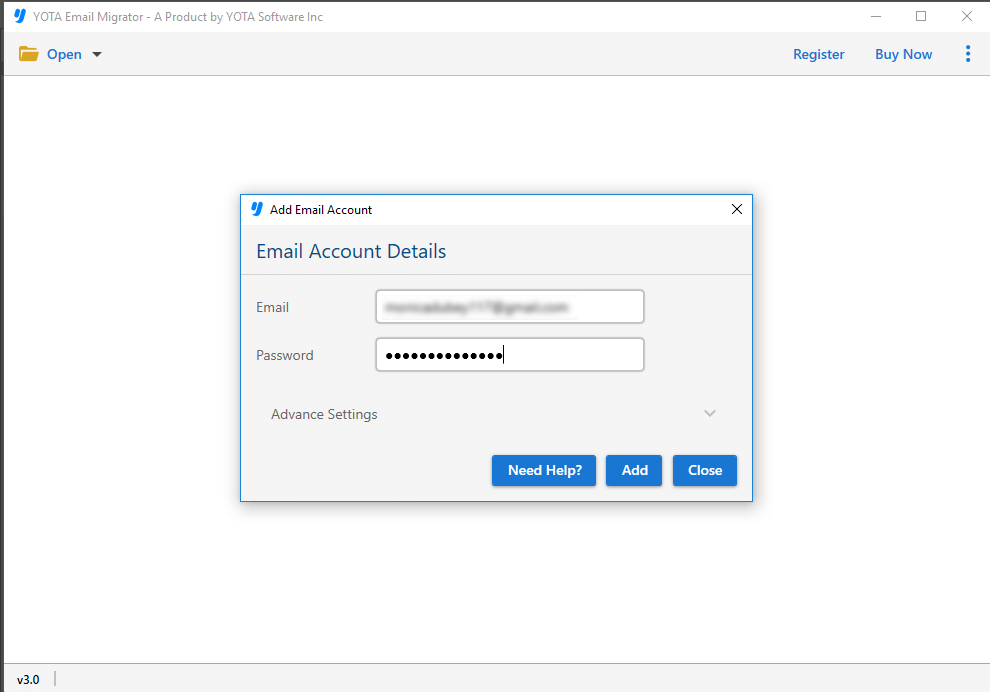
- Enter the Gmail login credentials using App Password.
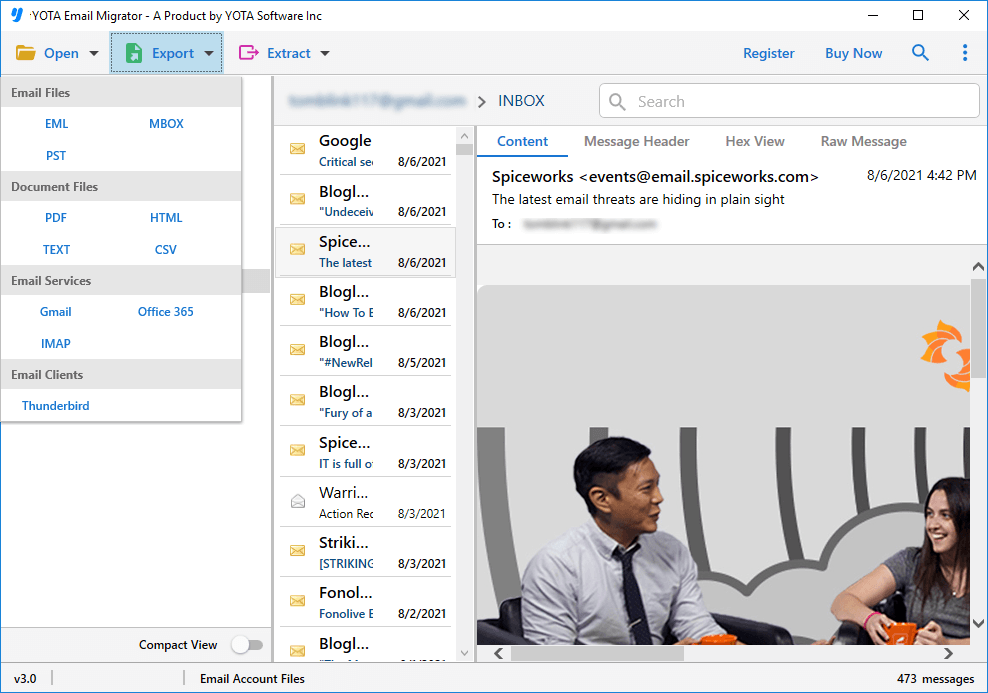
- Now, go to Export and choose Office 365 from the saving list.
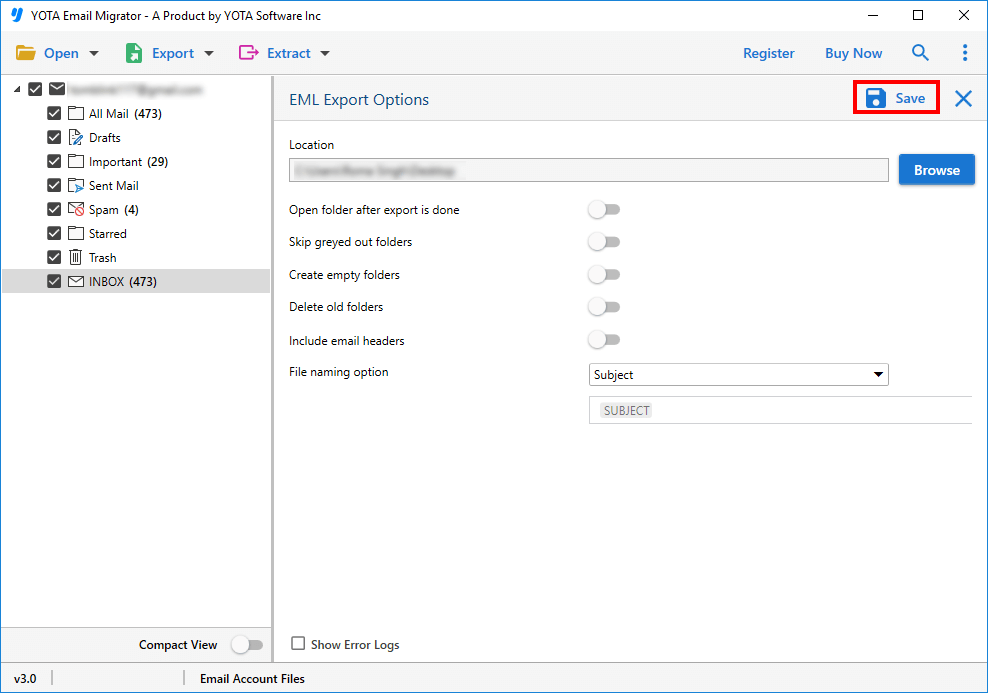
- Lastly, enter the Office 365 login details and hit the Save button.
That’s it! You emails are migrated in to your desired location.
What are the Benefits of using the Automated Software?
- The software allows you to move entire mailbox, including inbox, sent items, drafts, custom folders, and even archives to your Office 365 account.
- Your emails appear in Office 365 with the same folder structure you had in Gmail.
- You can apply filters such as date range, specific folders, or choose to skip spam, trash, or attachments.
- You can also migrate large mailboxes without any size limits.
- Your data stays safe because the tool uses secure authentication methods.
- The interface is also simple, so even beginners can transfer the data with just a few clicks.
Conclusion
To sum up, in the above blog, we have mentioned the best ways to export Gmail emails to Office 365. The manual methods are free to use and suitable only for migrating few emails. But, it has some limitations that we have mentioned above. So, it is recommended to use a professional tool like Gmail Backup Wizard. It is the most efficient method and comes with several advanced features to make the task easy and hassle-free. Apart from this, it is highly compatible with all Windows OS, so you don’t have to worry about compatibility issues.
Frequently Asked Questions
Can I transfer emails from Google Mail to O365 without losing data?
Yes. You can try both manual and automated methods to migrate your data safely. Although automated tool offers better accuracy and preserves the structure more effectively.
Can I migrate attachments from the mailbox also?
Yes. You can easily transfer attachments along with the emails using the professional software.
How long does Gmail to Office 365 migration take?
It depends on mailbox size, network speed, and the method used. Manual migrations are usually slower, while automated tools are faster and more optimized.