
Are you looking for a simple solution to export Gmail emails to IMAP server? If yes, then this guide will help you to accomplish the task. Here, we will talk about the best ways to migrate emails from Gmail mailbox to IMAP using manual and automated approach.
What is IMAP?
IMAP stands for Internet Message Access Protocol. It allows you to access your mailbox from any device be it laptop, tablet or phone. You can easily manage your emails directly from the mail server.
Features of IMAP:
- Emails are saved on the server not on any device.
- Any changes you make in your emails, it will be updated everywhere.
- Best for people who use multiple devices.
What are the Benefits of Migrating Gmail to IMAP Server
- With IMAP, you can access your Google Mail from any device or location.
- Because of SSL/TLS encryption, IMAP protects your data.
- Any change you make in your emails like reading, moving, or deleting, it gets updated on all connected devices.
- You can easily move your data to other email platforms without any issue.
Proven Ways to Export Gmail Emails to an IMAP Server
You can export your mailbox using two options:
- A manual method, using Outlook
- An automated tool
How to Transfer Email from Gmail to IMAP Manually?
- Open Outlook on your computer.
- Select File > Add Account.
- Enter your new IMAP email address and click Connect.
- When asked, choose IMAP as the account type.
- Enter the incoming (IMAP) and outgoing (SMTP) server settings for the new IMAP account.
- After the IMAP account is added, again go to File > Add Account and add your Gmail account.
- Once both accounts appear in Outlook, select the Gmail emails you want to migrate.
- Now, simply drag and drop your selected emails to your IMAP account.
Limitations of the Manual Method
- It is slow for large mailboxes.
- Requires installation of Outlook.
- High chance of missing attachments or incomplete uploads.
- Requires complex setup and technical know-how.
If you want a faster and more reliable option, you can use an automated tool.
How to Migrate Emails from Google Mail to IMAP Server Automatically?
Since Gmail does not provide direct option to move your data to IMAP, you can try Gmail to IMAP Migrator. It is a complete solution to backup Gmail emails to IMAP account. Users can easily move their mailbox data to other emails services like Yandex, GoDaddy, Office 365, Yahoo, etc. in few clicks.
The software maintains email formatting, attachments, and folder structure throughout the process. It has been designed with simplified panel for both professional and non-professional users. Plus, it supports multiple formats and allows you to export Gmail to PST, EML, MBOX, PDF, etc. Free trial is also available.

Steps to Transfer Gmail Emails to IMAP are:
- Download the software and install it on your PC.
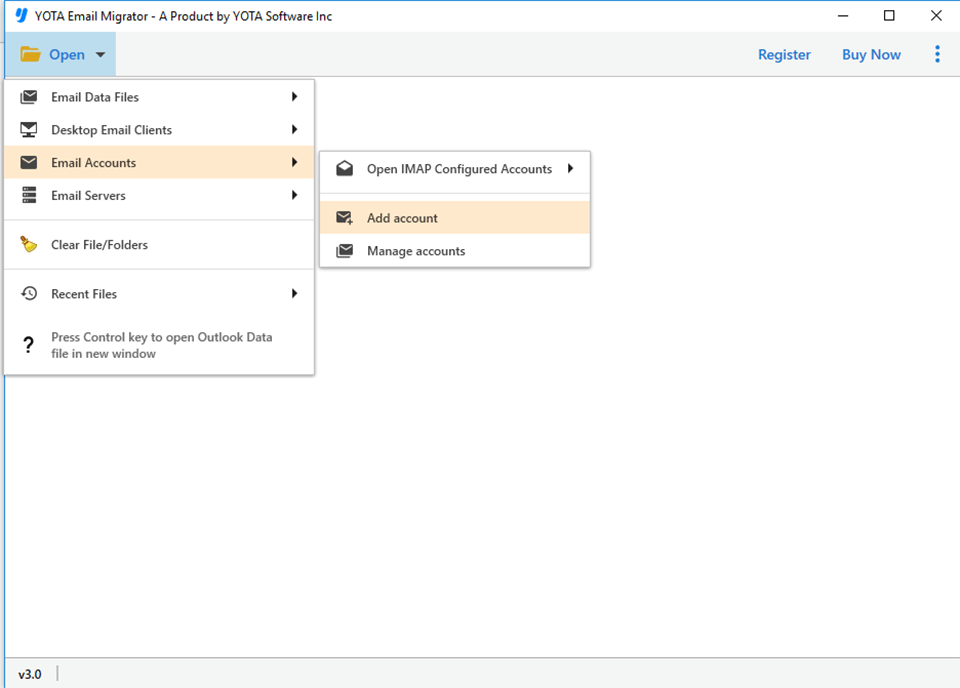
- Click on Open and go to Email Accounts>> Add Accounts.
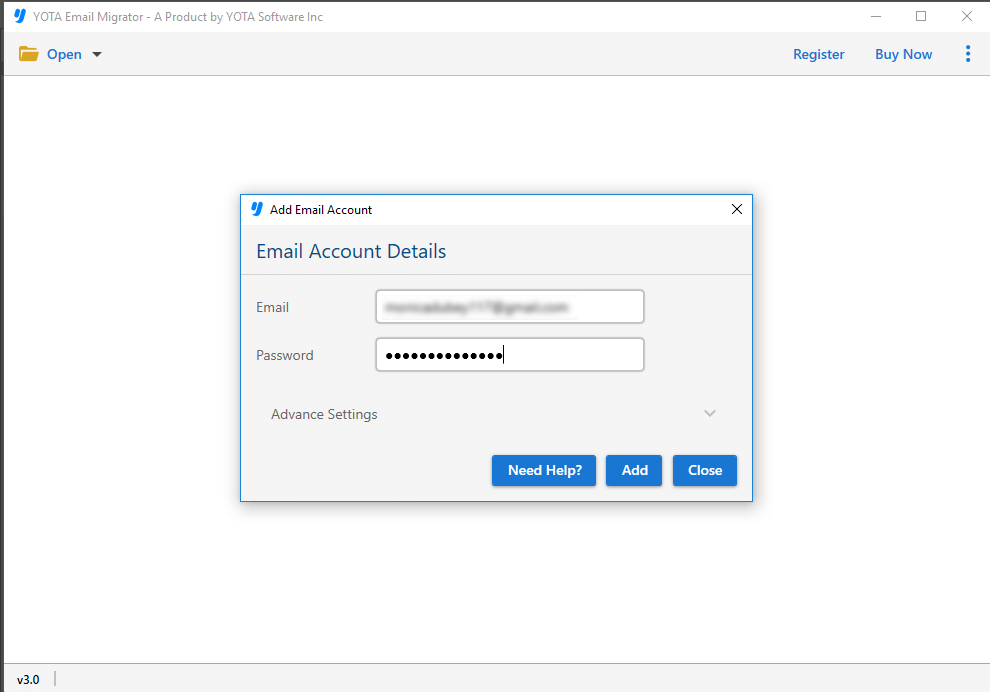
- Now, enter Gmail email ID and App Password to log in.
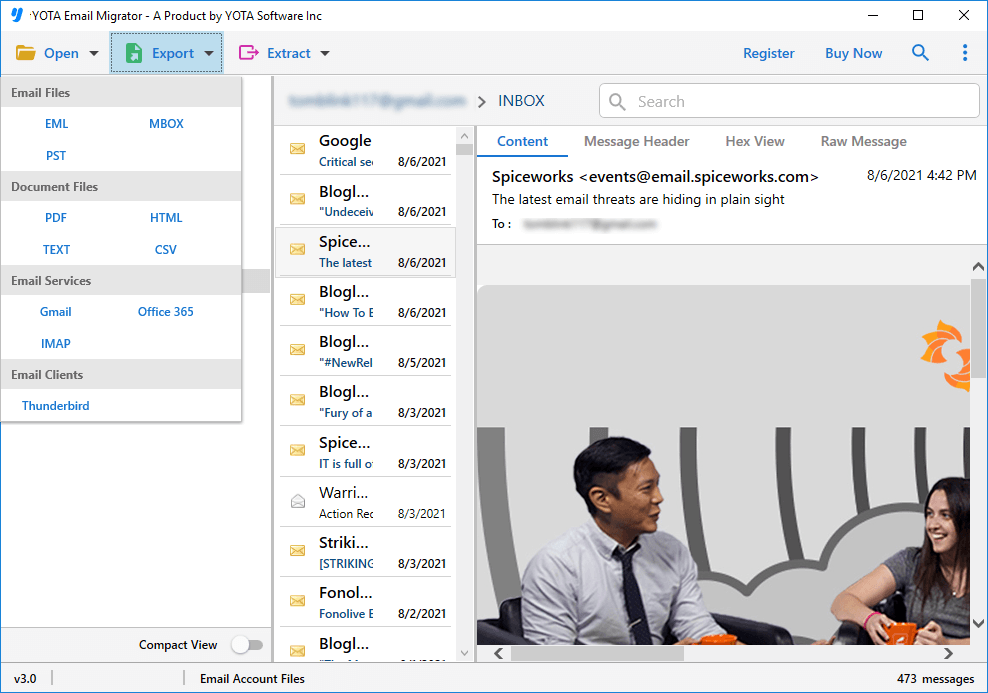
- Next, go to Export and pick IMAP as saving option.
- Lastly, enter IMAP login credentials and hit the Save button.
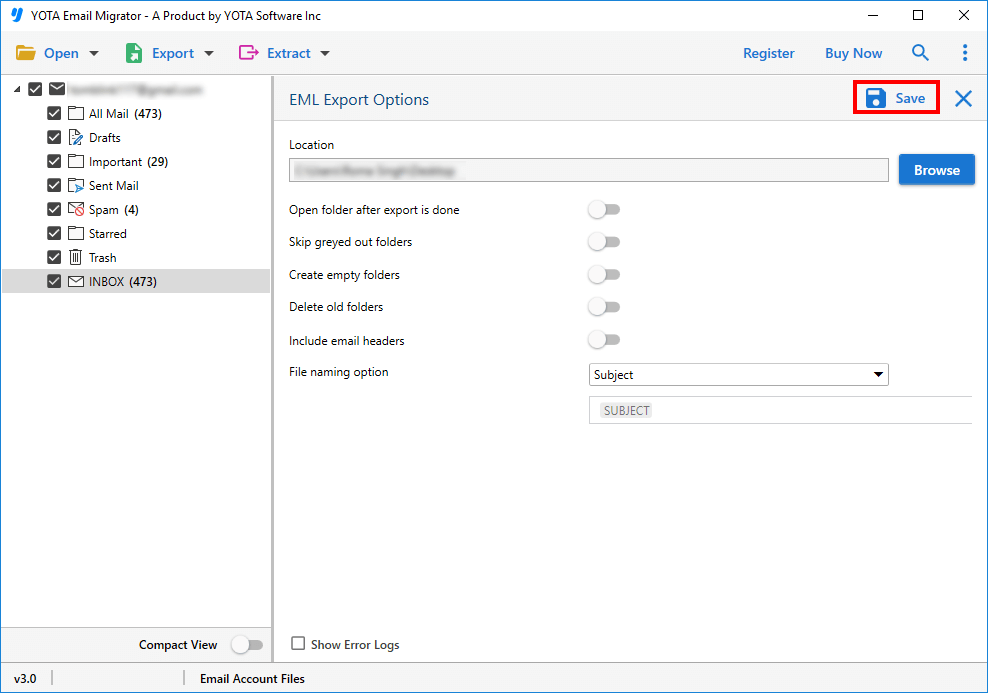
That’s it! In few simple clicks, you can easily export data to IMAP server.
Key Features of the Automated Software
- Transfer Gmail emails to any IMAP-supported email service without losing data.
- Supports moving large or multiple Gmail emails at once in easy steps.
- Migrates all items, including emails, attachments, contacts, calendars, tasks, notes, and more.
- Keeps the original folder structure intact after migration.
- Offers a Date Filter to move only selected emails from Gmail to the IMAP server.
- Works independently, without needing any additional email application or plugin installed.
- Ensures complete and safe migration with zero data corruption.
- Designed with easy-to-use interface with a self-navigational panel.
- Comes with a free demo version to migrate a limited number of items.
Conclusion
In this blog, we have discussed different ways to migrate Gmail emails to IMAP accounts. If you have few emails to export, manual method can work for you. But, if you have bulk data to transfer and want an error-free solution, a professional software is the better option. With this utility, you can easily import Gmail to IMAP without needing any technical support.
Frequently Asked Questions
Will my emails be deleted from Gmail after email migration?
No. Your messages stay in Gmail until you delete them by yourself.
How long it will take to migrate data to IMAP server?
It depends on the method you use. Manual migration may take hours, while an automated tool can complete the process quickly.
Is there a risk of losing data during migration?
With a reliable automated tool, the risk is very low. But manual steps may cause errors if not done carefully.