
Do you want to know the efficient method to export Gmail to CSV format? If yes, then you are at the right place. Gmail is one of the most popular email services used by so many users. But sometimes, you might want to migrate data into a more flexible format like CSV. CSV files are simple, lesser in file size and most importantly, they are compatible with applications like Excel, Google Sheets, etc.
This blog discusses both manual and professional solutions that will let you to convert your data quickly and effortlessly.
Why to Convert Gmail Emails to CSV Format?
- You can open your data in Excel to analyze your data.
- CSV files make it easy to save your messages in a local PC.
- You can also use these files to move your data into CRM platforms.
- It can keep your emails organized for business or even audit purposes.
- You can move only the selected emails like date, sender, or subject.
CSV files can be opened with applications such as Google Sheets, Excel, Notepad, and many other programs, which makes them very flexible and easy to use.
How to Export Gmail to CSV Manually?
There are two free working solutions that you can try to save your data in CSV format. We will explain them one by one with detailed steps.
Method 1: Convert Emails to CSV using Excel
- Log in to your Google account.
- Open the email you want to export.
- Click the three dots and select Download Message.
- This way you will save the email as EML file.
- Now, open Excel and start a new blank spreadsheet.
- Drag and drop the saved EML file into the Excel sheet.
- Click Proceed when the prompt appears, then choose Enable Editing.
- Finally, save the file as CSV using File > Save As.
Method 2: Use Outlook to Export Gmail mailbox to CSV Format
- Log in to your Gmail account and enable IMAP in Settings.
- Open Outlook and add your Gmail account using the App Password.
- Wait for Outlook sync your Gmail emails.
- Go to File >> Open & Export >> Import/Export.
- Choose Export to a file, then select Comma Separated Values (CSV).
- Pick the Gmail folder you want to export.
- Browse the location to save the CSV file and click Finish.
That’s it! Your mailbox is now saved in CSV format on your PC.
Limitations of Manual Method
- This is a time-consuming process, especially for large mailboxes.
- You cannot download selective emails to your computer.
- Exporting multiple emails manually can be confusing and error-prone.
- No guarantee for accurate results.
How to Transfer Emails from Gmail to CSV Automatically?
If you want a simple way to save your messages in CSV format without any complex steps or tools, then Gmail Backup Tool is the perfect solution. It allows you to convert your mailbox data in bulk effortlessly. Also, it does not have any limitations on file size or number of emails. The software is completely safe and user-friendly tool that can be used by even new users without requiring technical skills.
This is all-in-one solution that can even migrate data to other platforms like Outlook, Office 365, Thunderbird, etc. Plus, it supports multiple formats and emails clients with high accuracy. It provides, powerful features, smart filter options, and flexibility. The program is compatible with all Windows OS. You can try the free DEMO now to test the working of the tool.

Steps to Export Gmail Emails to CSV Format are:
- Download the tool and install it on your PC.
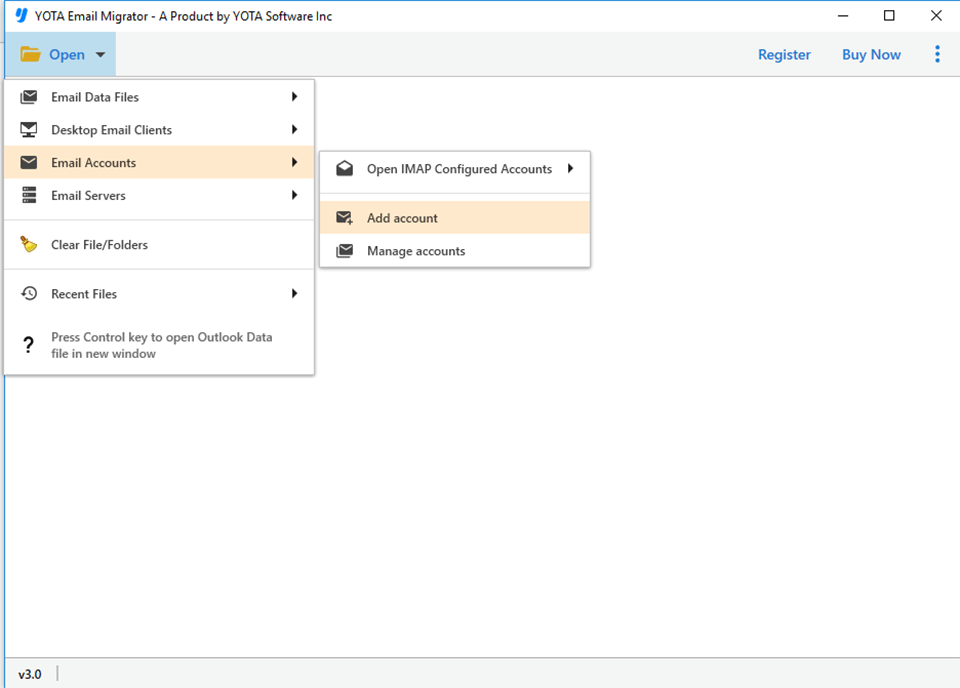
- Click on Open>> Email Accounts>> Add Accounts.
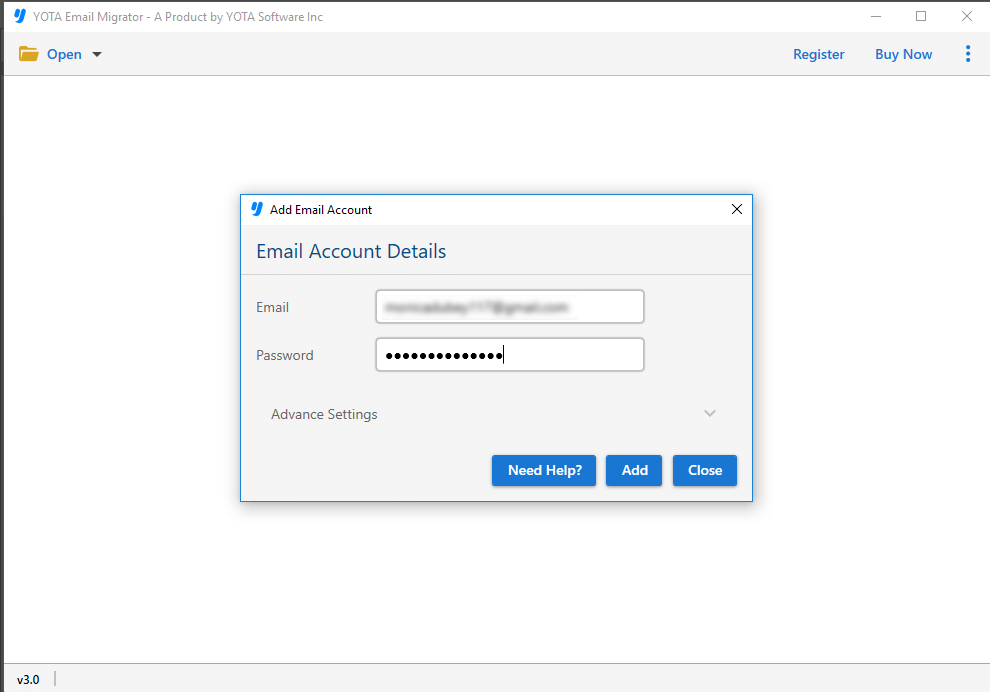
- Next, enter Gmail login credentials and log in.
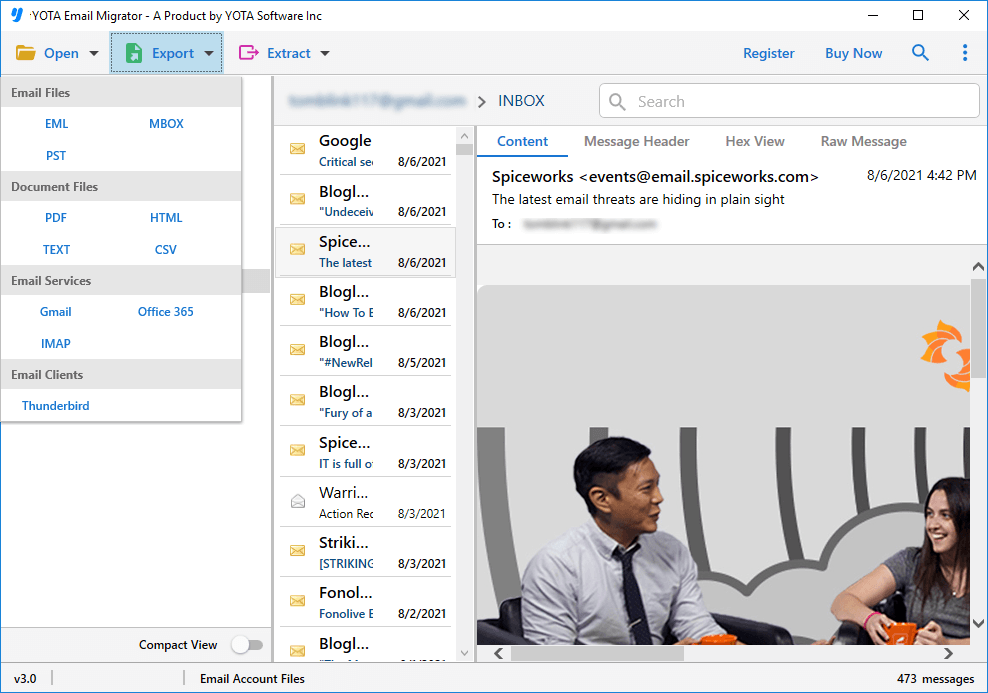
- Now, go to Export and select CSV as saving option.
- Finally, browse the destination path and hit the Save button.
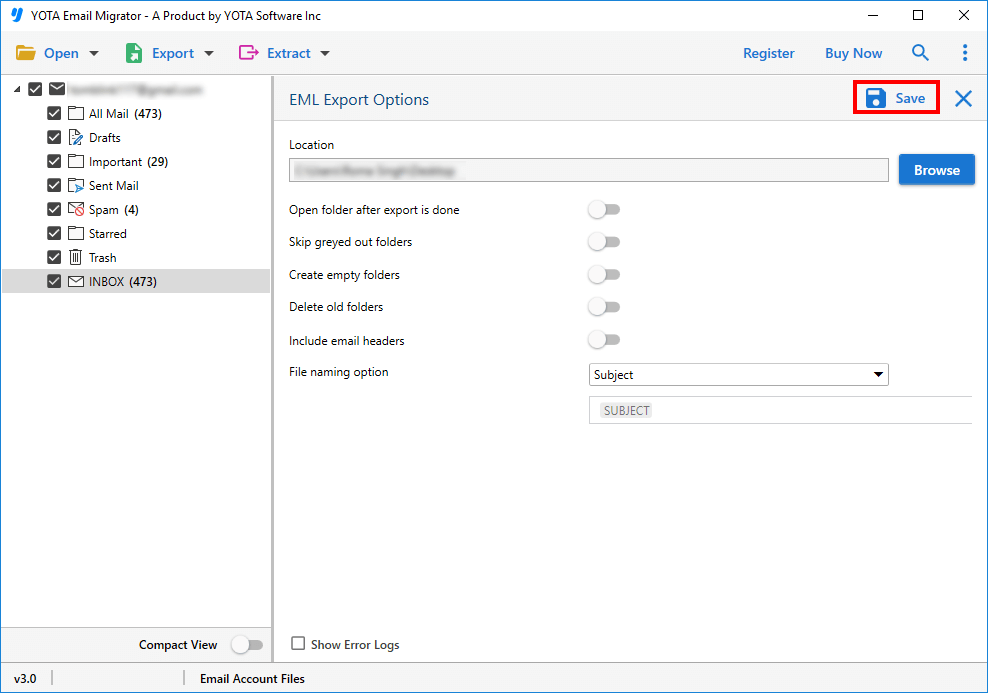
You are done! With just few simple clicks, you have successfully converted your emails.
Key Features of the Tool
- You can convert single or multiple Gmail emails to CSV at once, without any size limitations.
- It supports multiple export formats such as PDF, PST, MBOX, and many more.
- You can move your Gmail data to other platforms like Outlook, Office 365, Yahoo, Zoho, or IMAP servers.
- The tool allows you preview your emails before starting process.
- It keeps all details and folder structure intact throughout.
- You can use the Date Filter to convert only emails between specific date range.
- Manage your attachments easily — exclude them or save them separately if needed.
- The software runs smoothly on all versions of Windows OS including Win 11, 10, 8, etc.
Conclusion
In this blog, we have discussed a complete guide on how to export Gmail emails to CSV format. Here, three methods have been discussed including both manual as well as automated tool for error-free migrations. Although manual methods work, yet they come with few limitations like, complex setup, lengthy process and potential data loss. That is why, using a professional solution would be a better choice. This expert-recommended software provides advanced features and 100% accurate results.