
Introduction: This blog presents proven methods to backup Yahoo emails to computer. If you use Yahoo Mail and want to download Yahoo emails to your hard drive, be sure to read this post to the end. You’ll find complete instructions, along with screenshots of all the methods, here.
Before proceeding, let us take a quick overview of Yahoo Mail and why users need to create a Yahoo Mail backup.
Yahoo Mail is a well-known email service used by thousands of people for professional and personal communication. However, there have been many problems with Yahoo Mail. Recently, users encountered the temporary Yahoo Mail error 15, which prevented them from accessing their accounts and sending or receiving emails.
We all know how important emails are in today’s digital age, as they contain critical data information. Therefore, to protect and secure important data, creating a Yahoo backup is paramount for users and organizations.
Now, let us know the most common reasons behind saving or exporting Yahoo emails to computer or an external hard drive.
Importance of Creating a Yahoo Backup to Hard Drive
There are many reasons to backup Yahoo emails to computer. Here, we mentioned some common reasons for downloading Yahoo emails locally.
- Security: Backing up important data to your local PC protects your data from online threats like hacker attacks.
- Office access: If you have a backup of your data on your computer or hard drive, you can access it even without internet connectivity.
- Data migration: If you’re migrating emails from Yahoo to another email service, you must first download Yahoo emails to your computer to avoid data loss.
- Accidental deletion: If your data is accidentally deleted, you can easily restore it using a backup.
Now, let us move to the methods to download emails from Yahoo Mail to PC or hard drive.
Methods to Backup Yahoo Emails to Computer
Here we explain three methods you can use to export Yahoo emails to your computer. You can choose any method that suits your needs or that you like.
- Save Yahoo Emails using the built-in Print Option
- Backup Yahoo Emails Using Outlook Email Client
- Download Yahoo Emails Using Yahoo Backup Tool
So, let’s start one by one.
How to Save Yahoo Emails Using the Built-in Print Option?
Here, you can save individual emails at a time to your computer. Follow the steps below to achieve this:
- Firstly, log in to your Yahoo Mail on your browser.
- Then open the email you want to save on your PC.
- Click on the menu and select More then Print option.
- Now, select the “Save as PDF” option to proceed.
- Choose the location on your PC to save Yahoo emails.
- Click on the Save button to save your emails in PDF format.
That’s all!
How to Backup Yahoo Emails to Computer Using Outlook?
In this method, you need to first install the Outlook application on your PC if not installed. Then follow the instructions below to export Yahoo emails to PC or hard drive.
- Open your Outlook application and click on the File menu.
- Click on Add Account and enter your Yahoo Mail email address.
- Then click on Advanced Options and select Let me set up my account manually.
- Choose the IMAP option and enter the following information:
- IMAP Settings for Yahoo Mail Server: export.imap.mail.yahoo.com
- Port: 993
- SSL requires: YesSMTP for Yahoo Mail
- Server: smtp.mail.yahoo.com
- Port: 465 or 587
- SSL requires: Yes
- Authentication requires: Yes
- After that, Outlook checks the server settings.
- Once the account is configured, go to File > Open & Export > Import/Export option.
- Select the export to a file option and click Next.
- Then select the Outlook data file and click Next.
- Choose a location to save the PST file and click Finish.
This way, you can export Yahoo Mail to PST file format.
How to Download Yahoo Emails to Hard Drive Using Automated Tool?
To backup Yahoo emails to computer in bulk, you can use the Yahoo Backup Tool on your system. It has a simple interface that helps users to smoothly download all emails from Yahoo Mail account in a single attempt. The software also provides an option to back up only specific emails and save storage space.

Additionally, it does not need any support from external applications to create a Yahoo Mail backup to PC. The software allows you to export Yahoo emails to PDF, PST, EML, MBOX, CSV, and many other file formats.
Along with this, you have an option to migrate emails from Yahoo Mail to various email accounts like Gmail, Hotmail, Zoho Mail, Office 365, and many more.
Steps to Backup Yahoo Emails to Computer are as follows:
- Download and install Yahoo Backup Tool on your computer.
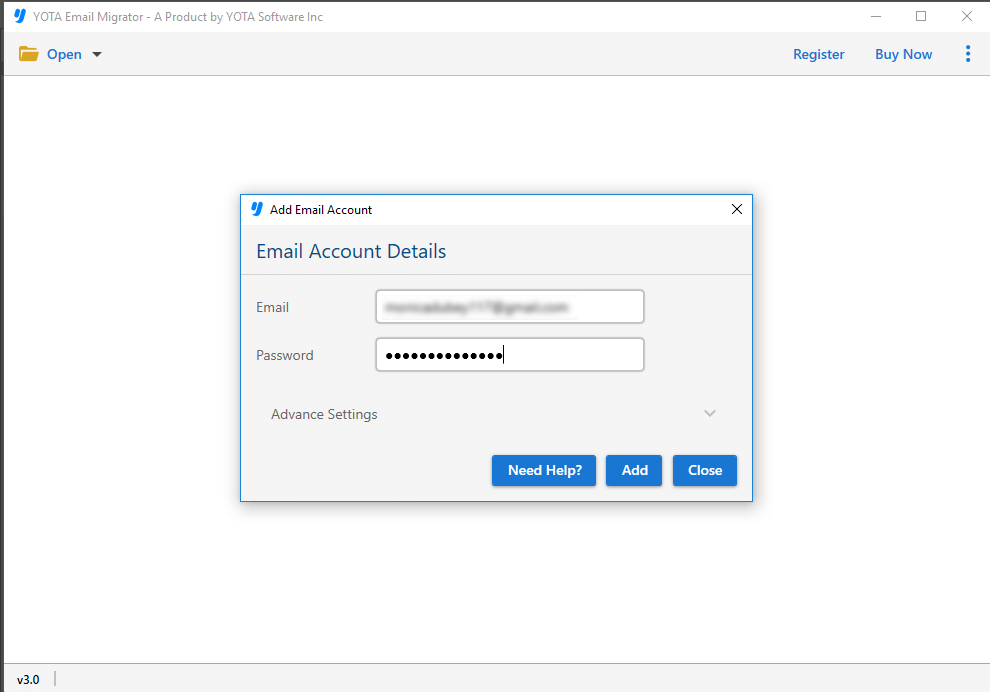
- Then click Open > Email Accounts > Add Account option.

- Enter the email address and password of your Yahoo Mail account.
- Next, click on the Export button and select the desired file format.

- Choose a location to store emails and click on the Save button.

All done!
Final Words
In the above blog, we have explained 3 methods to download Yahoo emails to hard drive. You can choose any of the methods according to your needs and effortlessly backup Yahoo emails to computer.