
Office 365 is widely used cloud-based email service for many professionals and businesses. It allows to store emails, calendars and other productivity tools. Although, it is highly secured service but, data loss, account hacking or deletion of data can still happen. That is why it becomes so important to backup Office 365 emails to a local PC or hard drive.
Quick Summary: In this article , we will explain why you should backup Office 365 email. You can save Office 365 emails to local PC by exporting O365 emails in PST format via Outlook method or you can try an automated solution that can directly backup Office 365 mailbox with all emails, attachments, and other folders to your desired location.
Reasons to Backup Office 365 Emails
- Backup can protect emails from any hacking.
- It allows you to access emails locally when Microsoft services are unavailable.
- You can easily move emails to Outlook, Thunderbird, or other clients.
- It also allows you to read emails without internet connectivity.
- Many businesses must store a local archive for audits and legal purposes.
How Do I Manually Save Emails from Office 365 to Desktop?
You can use Outlook to export Office 365 emails to a local PC via Import/Export Wizard. Follow the below steps:
- Open Outlook on your PC and add your Office 365 account using your email and password.
- Sync emails to Outlook.
- Go to File > Open & Export > Import/Export.
- Select Export to a File > Outlook Data File (.pst).
- Choose the mailbox or folder you want to back up.
- Save the file to your PC or external hard drive.
This way you have created a backup file of your Office 365 emails in PST format.
Drawbacks of Manual Method
- Requires Outlook installation.
- Not suitable for large mailboxes.
- Manual process is time-consuming and prone to errors.
- Limited to PST format only.
- Difficult for non-technical users to follow the steps.
Because of these limitations, many users go for an automated Office 365 Backup Tool.
Advanced Tool to Download Office 365 Emails to Hard Drive
Try Office 365 Backup Software to save emails from Office 365 account in bulk. This tool is safe, secured and reliable solution to backup single or multiple emails from Office 365 account without requiring any additional software. The interface of the utility is very simple and straightforward. You just need to follow few simple steps and your data will be saved very quickly.
With the help of this tool, you can save specific emails based on different criteria like date range, keywords, file size, with or without having attachments and many more. Also, you can pause or resume the process anytime you want. Download the tool now.

Steps to Backup Emails from Office 365 with Attachments are:
- Install Office 365 Backup Tool on your PC.
- Click on Open>>Email Accounts>> Add Account option.
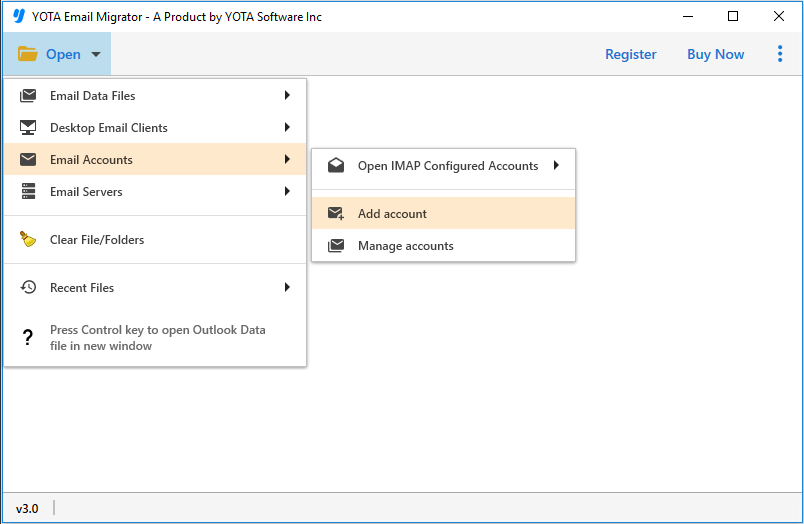
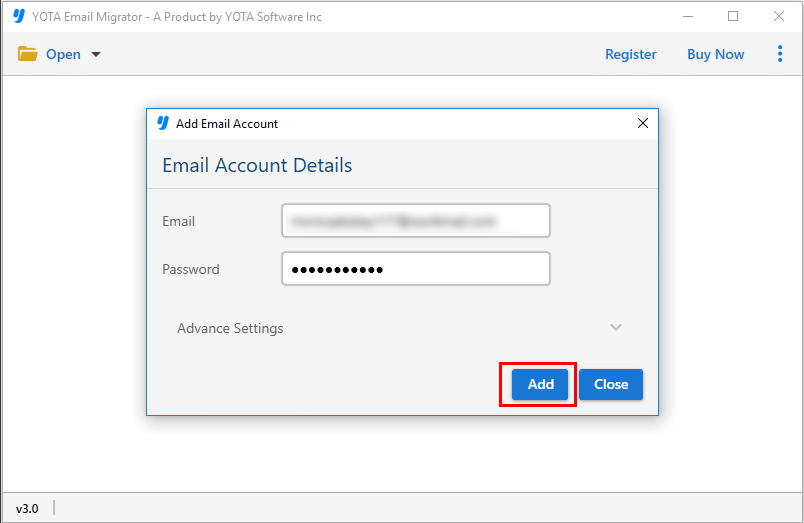
- Enter Office 365 login details and add the account.
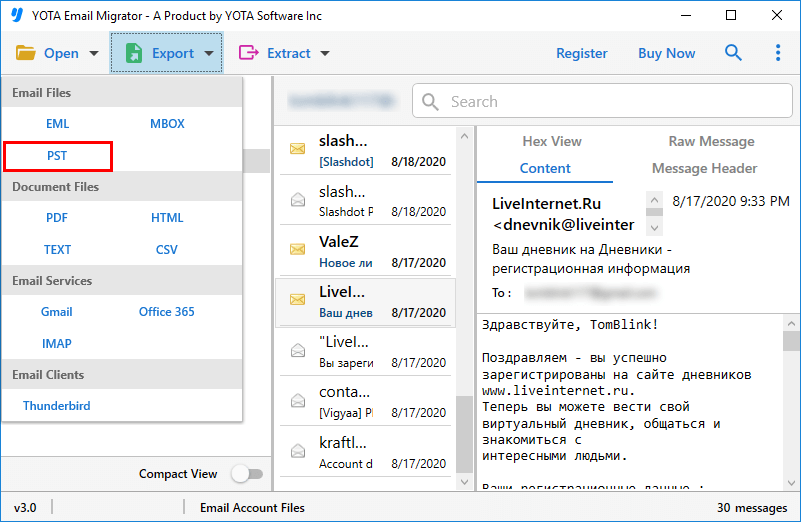
- Now, go to Export option and select desired file format like PST, PDF, etc.
- Finally, choose the location and hit the Save button.
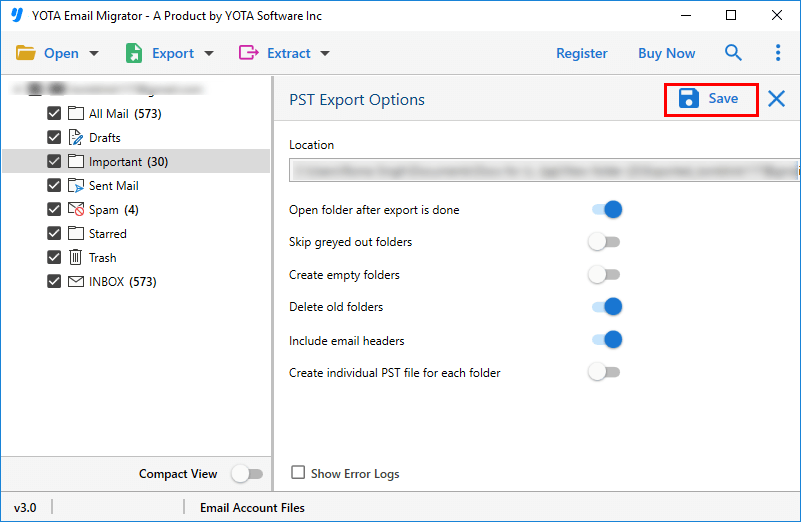
That’s it! You have successfully downloaded emails from Office 365 account in few minutes.
Why Expert Recommend this Office 365 Backup Tool?
- This tool allows you to save Office 365 emails in multiple formats like PST, MBOX, EML, PDF, HTML, etc. Unlike manual method, there is no restriction on file formats.
- With the help of this tool, you can save entire Office 365 mailbox that includes emails, attachments, contacts, and calendars, etc. You can fully trust the software.
- The tool offers smart filter options that will let you choose specific emails or folders within a date range. So, you don’t have to download the complete mailbox if it is not needed.
- While saving Office 365 emails, the software preserves the folder structure and hierarchy. All the meta elements of the emails will also be preserved with 100% accuracy.
- You can install this Office 365 Backup Tool on all the older and latest Windows OS including Win 11, 10, 8, 7, etc.
Conclusion
In this write-up, we have discussed how to backup Office 365 emails to hard drive or local PC easily and effortlessly. Here we have explained both manual and professional methods to save emails from Office 365. However, manual method discussed above is time consuming and required technical knowledge. So, to overcome these limitations, you can try the automated Office 365 Backup Tool. It offers simple and faster way to download emails from Office 365 to hard drive directly and in multiple formats. Also, the tool offers free demo so that you can test the working of the tool for free.
Frequently Asked Questions – Backup Office 365 Emails
Can I save Office 365 emails in PDF format?
Yes, you can download emails from Office 365 to PDF format using this tool.
Do I need to install Outlook to use this tool?
No, since the tool works independently, you don’t need to install Outlook to utilize this tool.
Can I backup Office 365 emails with attachments?
Yes, the tool lets you save emails and attachments from Office 365 account so that you don’t lose a single bit of data.
Is my Office 365 account safe with this tool?
Yes, the software is 100% secure and designed in a way that it will never save your login details in its database.
Can I try the tool before buying?
Yes, it provides a free demo version to test the features of the tool. Using the free trial, you can export 10 emails per folder in your desired format.