
Are you looking to backup Kerio emails to your computer or external hard drive? If yes, then do not worry! Here we have the accurate solution to save your emails to local PC with simple steps. If you are using Kerio Mail Server or Connect for your personal or business communications then you should think about exporting emails from mailbox to your PC. Due to unexpected crashes, or hacked account, you may lose your data.
In this guide, we’ll show you two easy methods to save your messages:
- Using Kerio’s built-in export option, and
- An automated tool
Why Should You Backup Kerio Mailbox?
Various reasons due to which users want to download Kerio emails to computer are:
- You can save your emails on computer and read them even without the internet.
- It helps you to protect your data when server stops working or your account gets hacked.
- You can move your emails to other services like Outlook, Zoho Mail, or Gmail.
- It lets you free up space on your mail server.
How to Method to Backup Kerio Emails Manually?
- Log in to your Kerio account as an admin.
- Go to Configuration > Archiving & Backup.
- Select the Backup option and turn it on.
- Choose the data to backup like emails, contacts, or settings.
- Set the backup schedule and choose where to save the file.
- Pick the destination folder or network drive for saving.
- Click Apply and then Start Now to begin the backup.
Limitations of Manual Backup
- You can’t export all folders in batch mode.
- You may lose your attachments and contacts.
- Slow and time-taking process for large mailboxes.
- You have to repeat the process each and every time for new data.
How to Download Kerio Mailbox to Local PC Automatically?
Try advanced Kerio Backup Tool to save your webmail efficiently. This is a simple and straightforward tool that can directly export data your desired format. You can download multiple emails at once. The software offers a fast, secure, and flexible options. Moreover, it can retain the folder structure and meta properties of emails effectively.
You can download the free demo of the tool to save 10 emails per folder and test the working features of the tool.

Steps to Backup Kerio Emails with Attachments are:
- Download and install the tool on your PC.
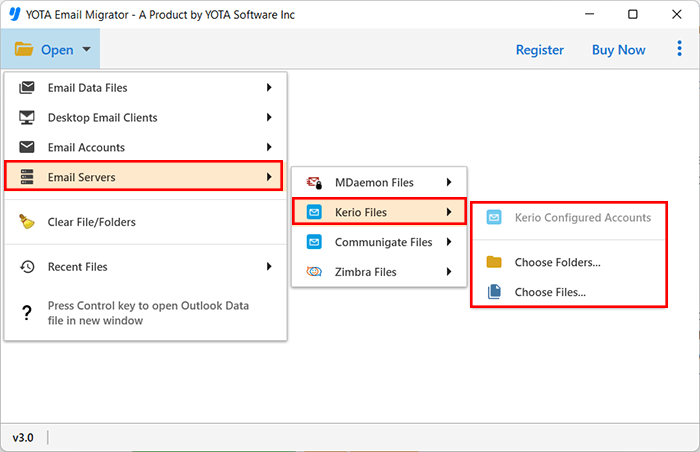
- Click Open>> Email Servers>>Kerio Files.
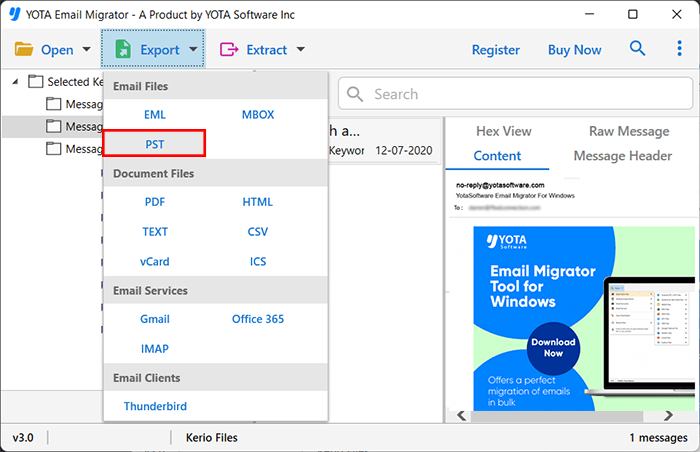
- Click on Export and choose the desired format like PST or PDF.
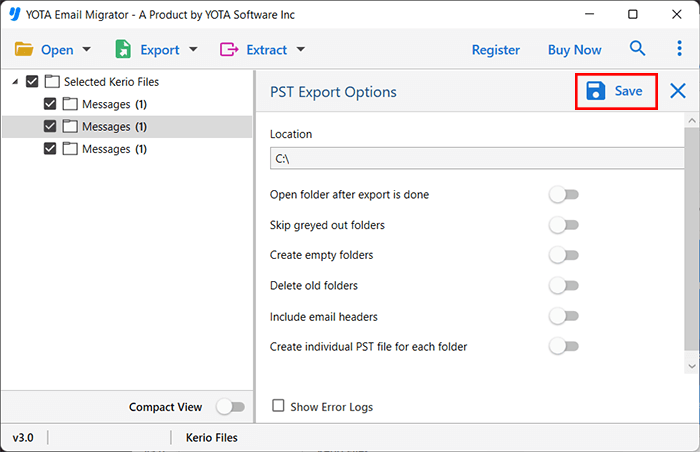
- Set the destination path and click the Save button.
Done! This is how you can create a backup copy of your mailbox in few minutes only.
Key Features of the Professional Tool
- Allows to backup emails to PC or external storage.
- Save emails to multiple formats like PST, MBOX, PDF, etc.
- Best way to backup Kerio Connect mailbox without complex setup.
- Maintain folder hierarchy, metadata, and attachments.
- Filter emails by date, sender, or any specific keyword for selective backup.
- Save all emails and attachments with 100% accuracy.
- Compatible with all Windows OS including Win 11, 10, 8, 7, etc.
- Capable to export multiple emails in a single process.
- Free demo version available to test before buying the tool.
Frequently Asked Questions
Can I backup emails manually?
Yes. You can export Kerio mailbox items via the in-built Backup option or use Kerio Outlook Connector. However, the manual method is slow and limited.
Can I export emails easily without any hassle?
You can use the professional software to save emails from Kerio Connect.
Is this automated solution safe and secure?
Absolutely. The tool can easily download emails from your mailbox safely without modifying any data. Also, it does not save any of your credentials in its database hence it is fully trusted software among the experts.
Conclusion
In this blog we have discussed how to backup Kerio emails using simple and easy tricks. Although we have shared the manual method to download emails from your webmail but it has few limitations. Complex setup is required and you might loose your data. If you want the better alternative, go for the professional tool i.e. Kerio Backup Wizard. It is the best solution to save your emails with attachments that too without loosing a single bit of data.