
Summary: This blog will guide you on how to backup CommuniGate emails to your computer. If you use the CommuniGate email server or CommuniGate webmail and want to download your emails locally, read this post. Here you’ll learn about reliable and quick ways to download emails from the CommuniGate cloud and email server.
CommuniGate Pro is a highly scalable, carrier-grade unified email server. In addition, CommuniGate Webmail provides a service that allows users to access their email directly through their web browser without installing any software. Communigate Webmail supports users in sending/receiving emails, messages, and managing contacts and calendars.
Why Should Users Create a CommuniGate Backup to Local PC?
We all know the importance of backup, and some of the main reasons to backup CommuniGate emails to computer are listed here:
- Data Security: When working with CommuniGate Cloud, there is always a risk of hacker attacks or ransomware attacks. To protect data from online threats, users should download CommuniGate emails to a local computer.
- Easy Migration: When migrating from one service to another email service or client, it is necessary to backup CommuniGate emails to the computer.
- Offline Access: After downloading emails from CommuniGate to a PC or hard drive, users can easily access them at any time, even without an internet connection.
- Free up Storage Space: It is recommended by the experts to create a CommuniGate backup on an external hard drive to free up server space.
How to Backup CommuniGate Emails to Computer?
Here, we are going to reveal 2 methods that can be used to download emails from CommuniGate.
- Backup Emails from CommuniGate Cloud (Webmail)
- Download Emails from CommuniGate Email Server
In the section below, we will mention all the steps of both methods. So follow the instructions to complete this task.
Method 1: Backup Emails from CommuniGate Cloud
If you are working with CommuniGate webmail for communication and want to backup CommuniGate emails, then you must use the CommuniGate Backup Tool. This will help you download all your emails from your mail account with 0% data loss. It comes with a modern and friendly interface that allows any kind of user to smoothly download CommuniGate emails to a computer.

Additionally, the software gives you an option to select the folders from which you want to save your emails locally. You can also select all folders, and the tool will save your emails from all entire folders at a time. Apart from that, it maintains the hierarchy of folders and subfolders even after creating a CommuniGate backup to the PC.
Steps to Backup CommuniGate Emails to Computer are:
- Download and install the CommuniGate backup tool on your system.
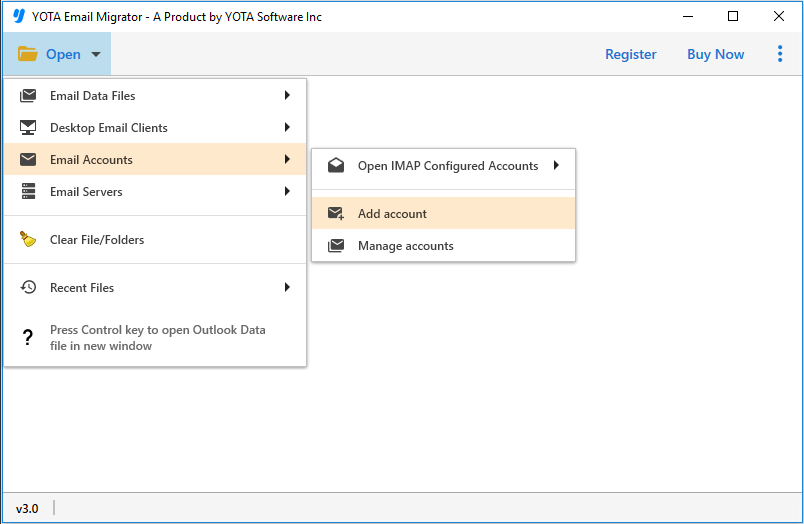
- Click Open >> Email Accounts >> Add Account to connect.
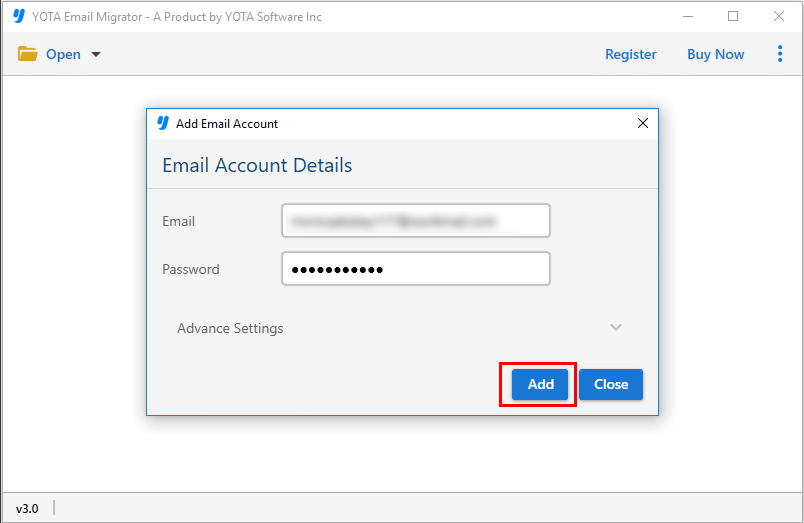
- Then enter your CommuniGate Webmail login details and click Add.
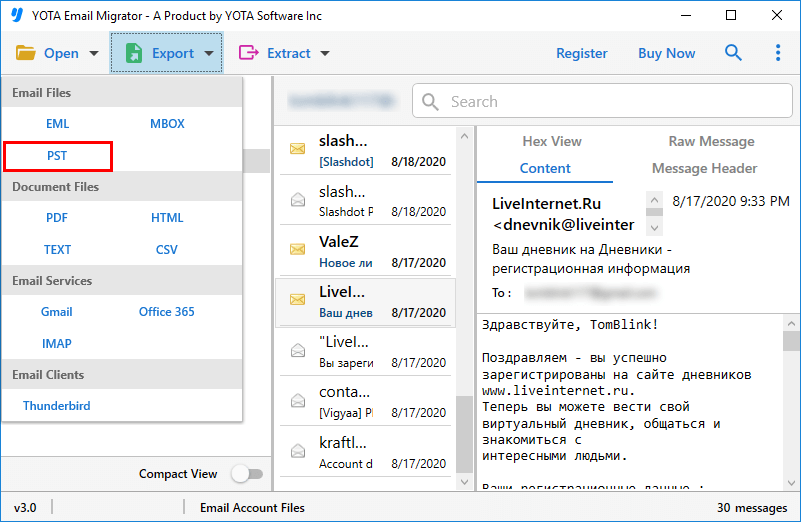
- Next, click Export and select the desired file format.
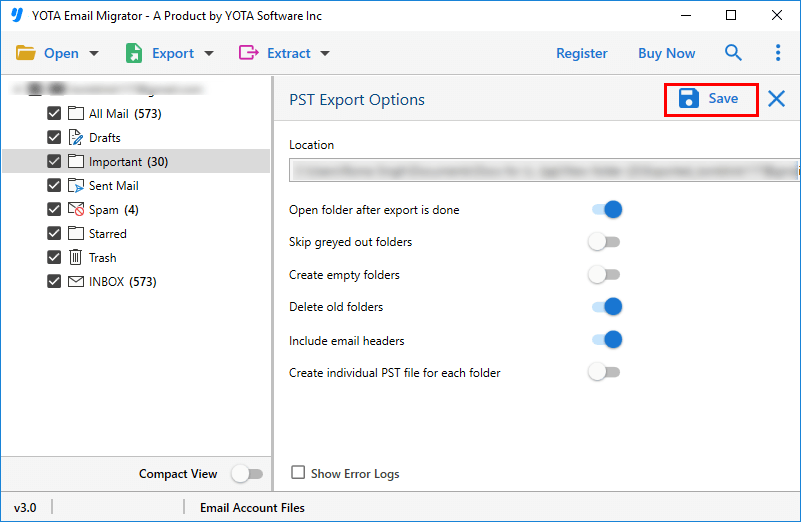
- Finally, choose a destination to store backup and click Save.
That’s all!
Method 2: Download Emails from CommuniGate Email Server
You can use the CommuniGate Migrator to export CommuniGate email server files to your computer. This software allows you to export CommuniGate files to PST, EML, MBOX, PDF, and many other file formats. After conversion, you can access your data files in multiple email clients like Outlook, Thunderbird, Apple Mail, and more.
With this software, it is possible to export unlimited emails without missing or losing any kind of data. It comes with an advanced algorithm and can save multiple as well as selective emails. After adding CommuniGate files to the software panel, you can see the preview of your files along with all attached information before starting the conversion.
Steps to Backup Emails from CommuniGate Server are:
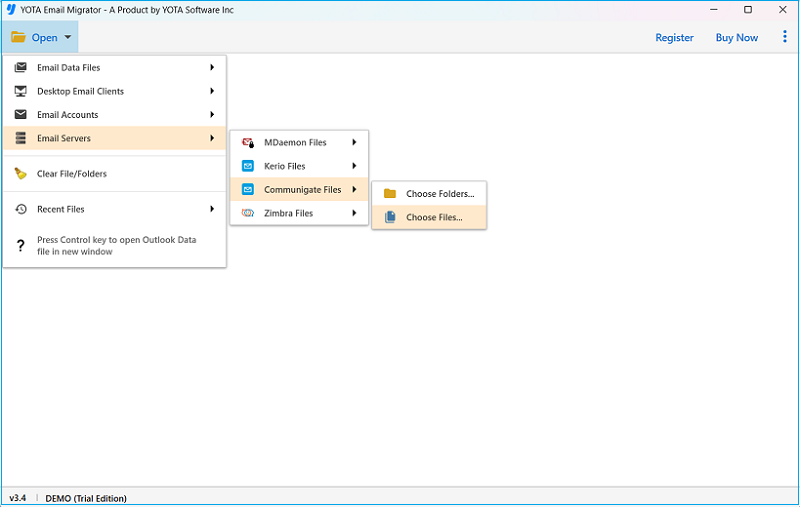
- Run the software on your Windows PC and click Open.
- Click Email Server > CommuniGate Files > Choose files or folders.
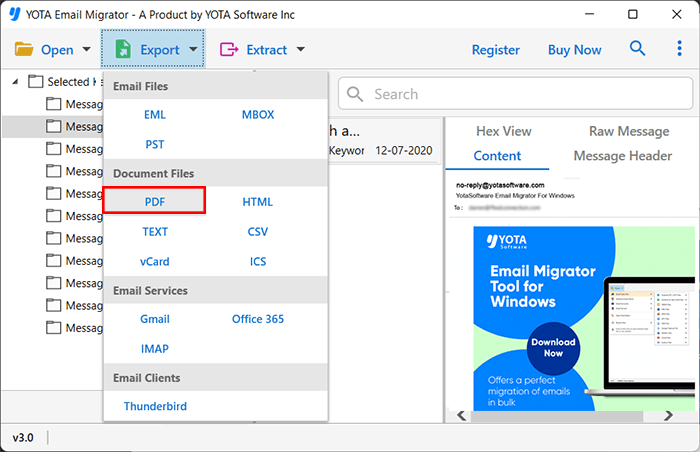
- Select emails and click Export, then select the preferred saving option.
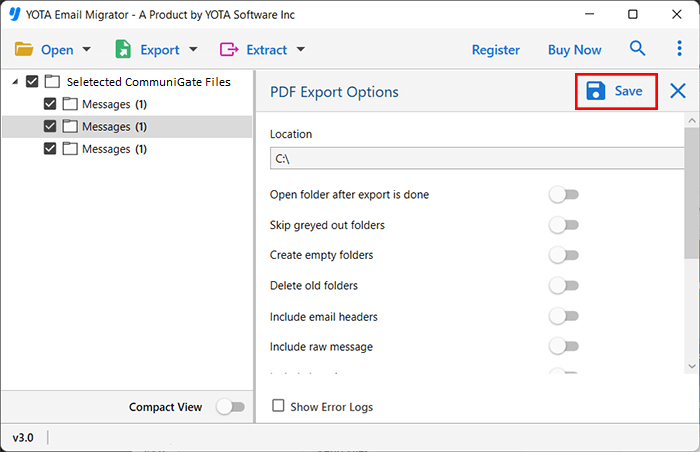
- Now, click on the Save button to begin the process.
Done!
Benefits of the Automated Tool
- Communigate backup tool allows you to backup CommuniGate emails to computer along with attachments.
- It lets you download emails from CommuniGate Webmail and the email server without losing any data.
- The tool provides the freedom to backup multiple CommuniGate emails to your PC at the same time.
- Also, offers an option to save CommuniGate files and emails to multiple file formats.
- One can easily import CommuniGate emails to Gmail, Office 365, Zoho Mail, and many other IMAP-based services.
Final Thoughts
Here, we have explained the ways to backup CommuniGate emails to computer or hard drive. No matter, you are using CommuniGate webmail or have CommuniGate server files, the CommuniGate backup tool allows you to save your emails to a PC. You can follow the mentioned steps to quickly download emails from CommuniGate to your computer.