
In todays digital era, people look for the easy methods to move their emails from one platform to other for better features. There are so many users and businesses who want to shift data from Gmail to Yahoo for several reasons. However, it is not a simple task to move emails to Yahoo Mail, especially when you have years of emails and large attachments. In this blog, we will explain clear and quick methods to transfer your mailbox data effortlessly.
Why Users want to Migrate from Gmail to Yahoo?
Here are the reasons why users shift from Gmail to Yahoo Mail:
- Yahoo provides easy email organization with smart views and large storage.
- It has improved privacy settings and fewer third-party integrations.
- Also, it has strong spam protection and built-in security features.
Real Case:
“A consulting agency which is managing 95 Gmail accounts decided to export data to Yahoo Mail. Because they wanted a simple interface and better mailbox capacity without paying for storage upgrades. This decision helped them in cutting operational cost by 40% within one year.”
How to Transfer Emails from Gmail to Yahoo Manually?
As, there is no direct option to export Gmail mailbox data to Yahoo account, you have to use IMAP settings using Outlook or Thunderbird. Follow the below steps:
- Open Outlook. Go to File >> Add Account.
- Enter your Gmail address, click Connect, and sign in using your Gmail App Password (if 2-step verification is ON).
- Once Gmail is added, Outlook will start downloading your emails.
- Now again go to File >> Add Account.
- Enter your Yahoo email address, click Connect, and sign in.
- After Yahoo is added, Outlook will show both accounts.
- Now select the Gmail folder you want to transfer.
- Simply drag and drop the selected emails into the Yahoo folder.
- Wait until the process finishes.
Done! Now, you can log in to your Yahoo Mail account to confirm that all emails have been imported.
Drawbacks of Manual Method
- It takes a lot of time and requires multiple configurations.
- High chances of login errors due to app passwords.
- Not suitable for large Gmail accounts with bulky attachments.
- Contacts, calendar, and labels do not transfer properly.
How to Export Gmail to Yahoo Directly?
If you have multiple Gmail accounts and you want a hassle free solution then try professional Gmail Backup Tool. It is a reliable software that migrate data from Google Mail to Yahoo directly without any complex setup. It helps to move bulk emails and keep the folder structure intact. Its simplified panel is suitable even for beginners. Since, no technical skills are required, anyone can transfer data without worrying about errors.

Steps to Migrate Gmail Emails to Yahoo in bulk are:
- Download and Install the tool on your Windows PC.
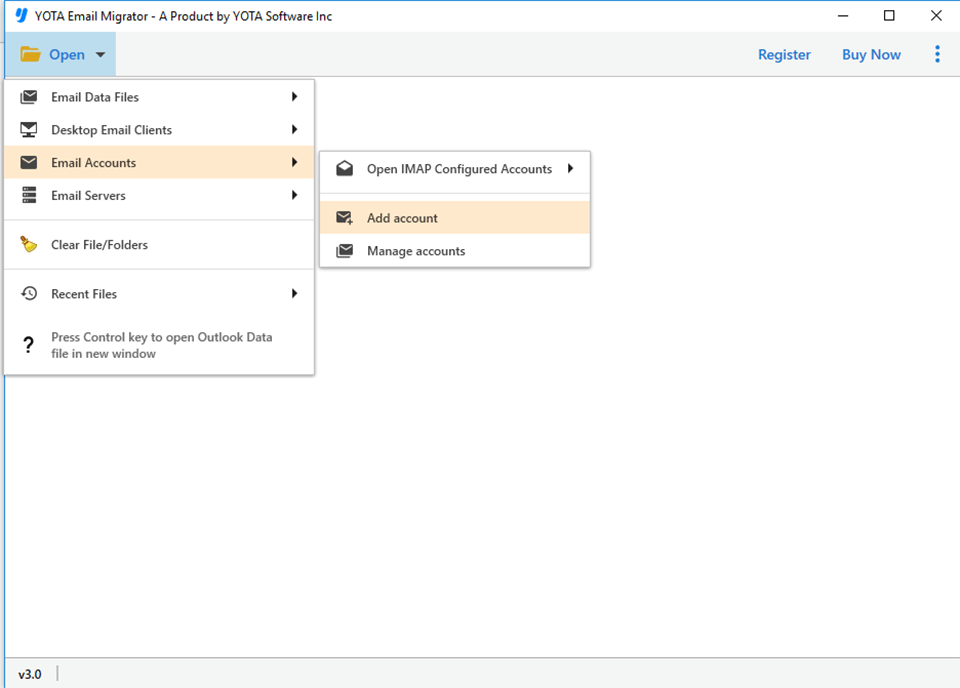
- Click on Open>> Email Accounts>> Add Account.
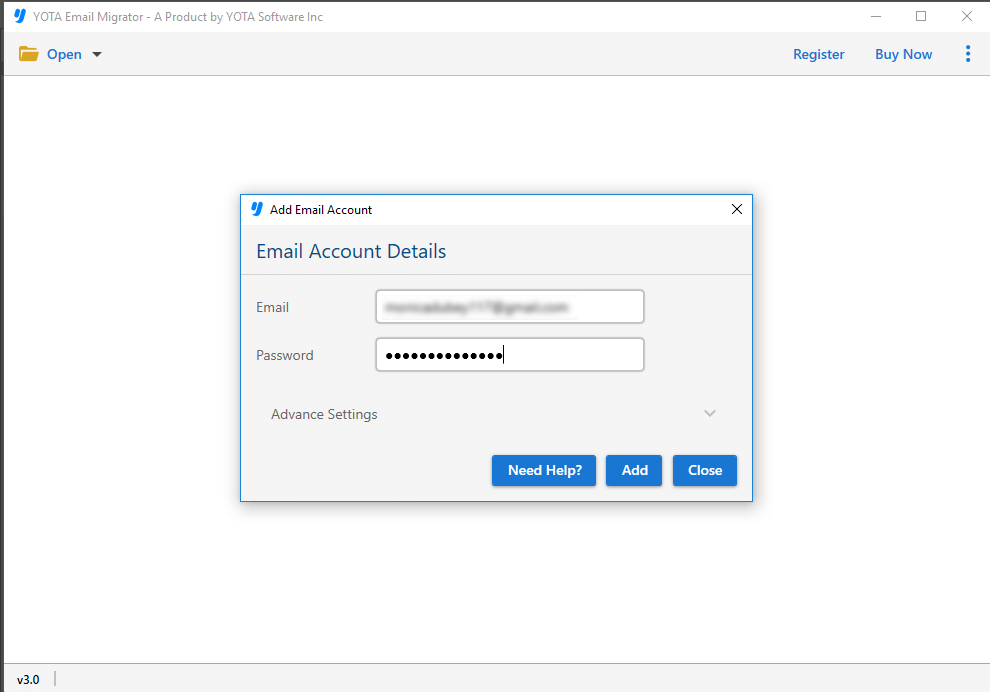
- Next, enter Gmail login credentials and log in.
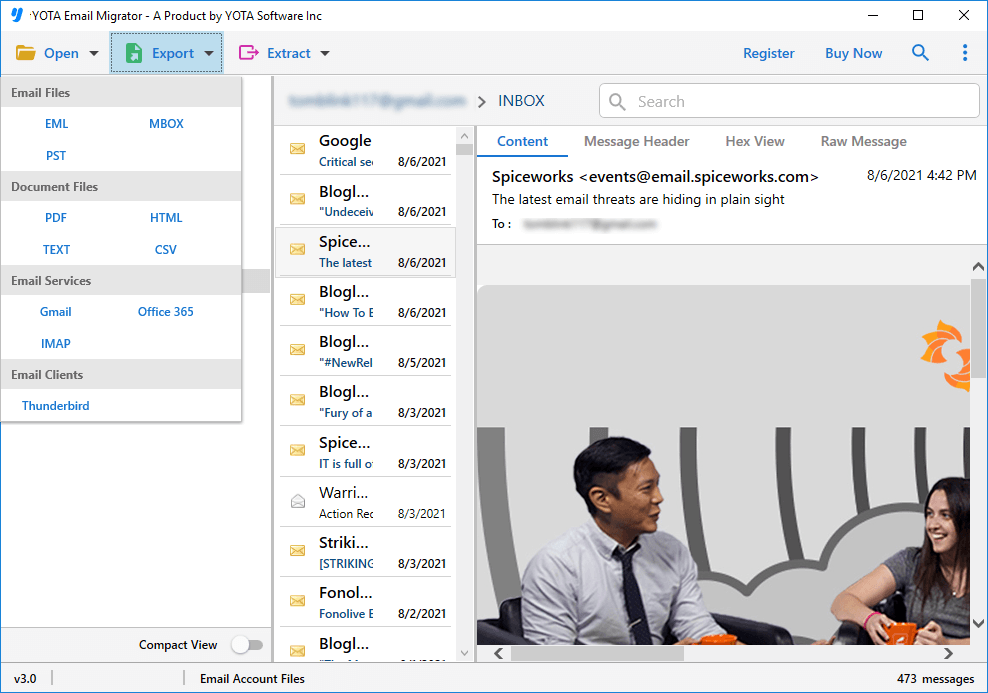
- Then, go to Export and select IMAP as saving option.
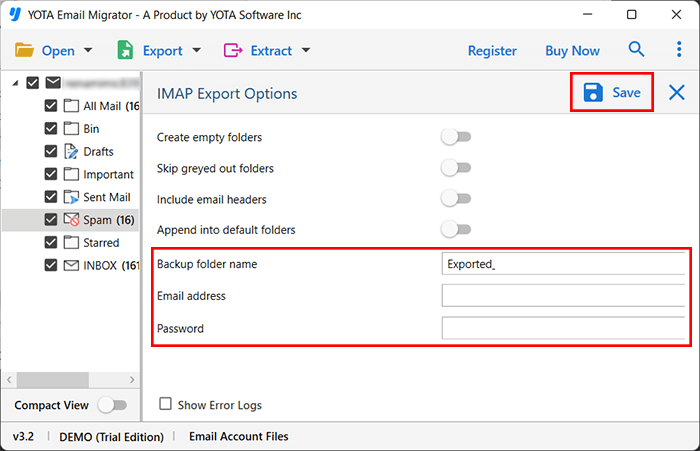
- Finally, enter the Yahoo Mail login credentials and hit the Save button.
Some helpful features of the automated tool are:
- Transfer Gmail emails to PST, PDF, CSV, MBOX, and other file formats.
- Move Gmail data directly to cloud-based email services.
- Supports migration of one or multiple Gmail emails at the same time.
- Shows a preview of data before starting the transfer.
- Apply a date filter for selective migration.
- Works smoothly on Windows 11, 10, 8.1, 8, and 7.
- Simple and easy-to-use interface for beginners and professionals.
- Comes with Demo version that lets you export 10 emails per folder.
Conclusion
In this blog, we have explored different ways to move your emails from Gmail to Yahoo. The manual IMAP method is suitable for small mailboxes, but it is a slow process and you might lose some emails or folders. If you want an accurate and complete transfer, it is suggested to use a reliable automated tool. It ensures no data loss, keeps your folder structure intact, and delivers fast results.