
If you are looking for a reliable method to transfer from Gmail to Roundcube, then follow this guide. We are getting so many user queries for moving data to Roundcube because either they want to use a webmail service offered by their hosting provider or they want to use it for simple and lightweight interface. But, it is a challenging task because both platforms use different server settings. You might lose your data if the setup is incorrect or your folders may not sync properly.
To overcome all these problems, we have explained the two effective ways including manual method and a direct professional tool to export Gmail mailbox to Roundcube with accuracy.
Why Do Users Move Emails from Gmail to Roundcube?
- Roundcube offers a clean, fast, and ad-free webmail experience.
- Many hosting providers support Roundcube for easy domain-based email access.
- Users prefer keeping work email inside their hosting account instead of Google servers.
- Roundcube works smoothly in cPanel and Plesk environments.
- Some users want more control over their email data.
- No dependency on Google’s ecosystem.
How to Export Gmail Emails to Roundcube Manually?
Before transferring Gmail to Roundcube, make sure:
- IMAP is enabled in your Gmail settings.
- You have the IMAP server details of your Roundcube email account.
- Once these are ready, you can connect Gmail and Roundcube through IMAP.
Steps to Transfer Gmail Mailbox to Roundcube:
- Open your browser and search for Google Takeout.
- Sign in using your Gmail account credentials.
- Once logged in, you’ll be redirected to the Google Takeout dashboard.
- Click Deselect all, scroll down, and enable Mail only.
- Tap Next step to continue.
- Choose your preferred delivery method, frequency, and file type, then click Create export.
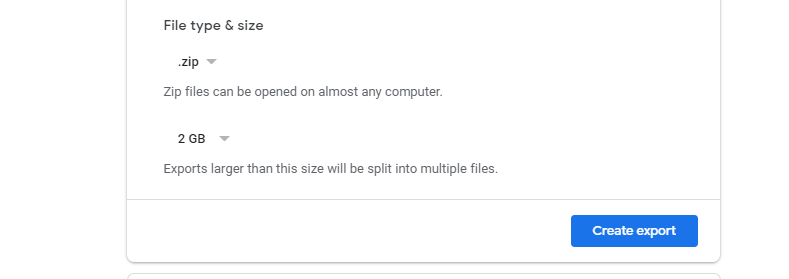
- Wait for Google to finish creating your export, then download the ZIP file.
- Extract the downloaded file to get the MBOX file containing your Gmail emails.
- Open and log in to your Roundcube account.
- Select the folder where you want to import Gmail emails.
- Click the three-dot menu and choose Import.
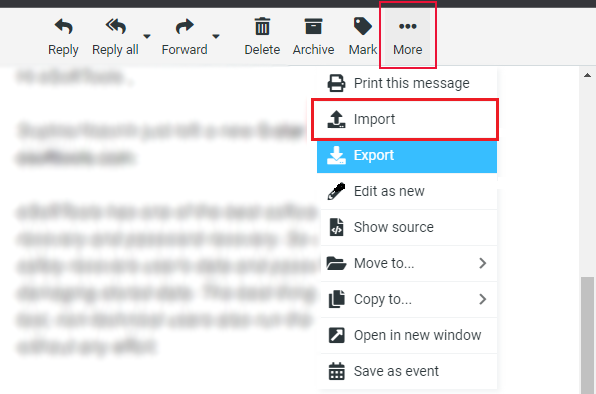
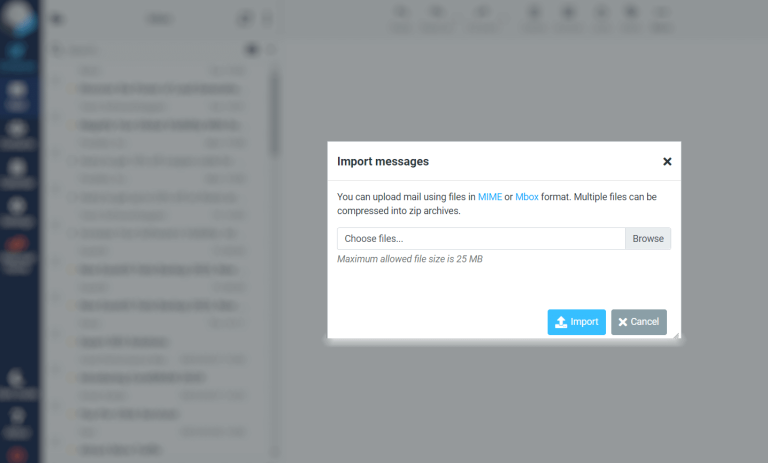
- Click Browse and select the MBOX file from your computer.
- Finally, hit Import to upload the file and add your Gmail emails to Roundcube.
Limitations of Manual Transfer
- It does not move emails directly from Gmail to Roundcube.
- Large MBOX files may not upload in Roundcube.
- Attachments make the file heavy and slow to import.
- Google Takeout can take a long time to create the export file.
Hassle-Free Method to Migrate Emails from Gmail to Roundcube
The faster and more reliable option is using a professional Gmail Backup Tool. The software lets you export emails, attachments, contacts and other mailbox items in few easy steps. You can move multiple emails from your mailbox in one single process. Plus, the tool is capable to maintain folder structure, meta elements and attachments with precision. Designed with simple interface, it can be utilized by all new and professional users. You can install the tool on all Windows OS including Win 11, 10, 8, 7, etc. Download the free demo now.

Steps to Transfer Gmail Emails to Roundcube are:
- Install the software on your PC.
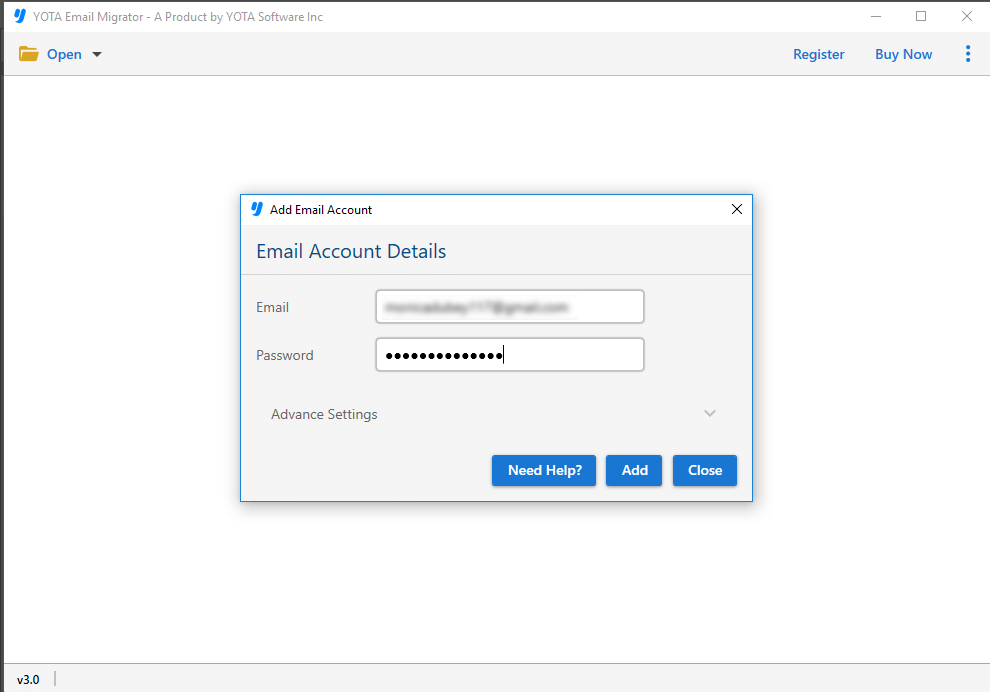
- Click on Open>> Email Accounts>> Add Account.
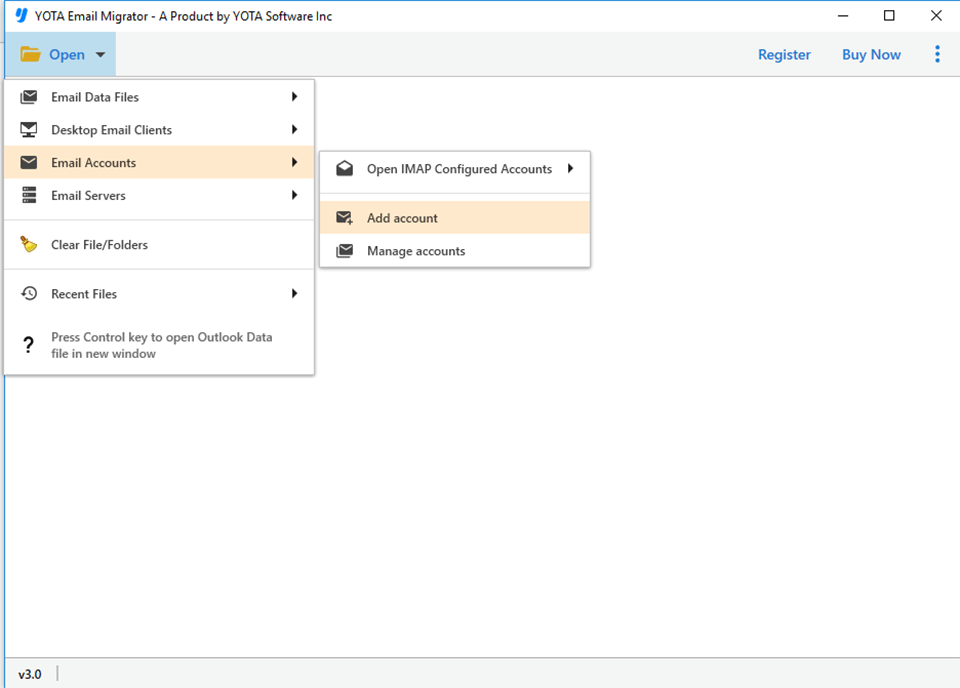
- Next, enter the Gmail login credentials and log in.
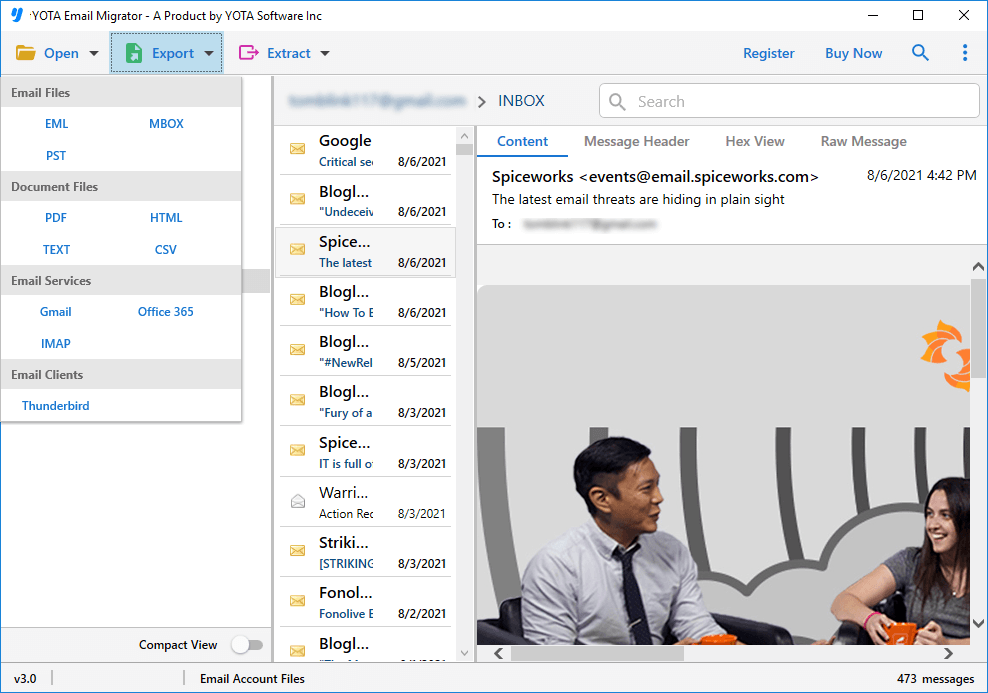
- Now, go to Export and select IMAP as saving option.
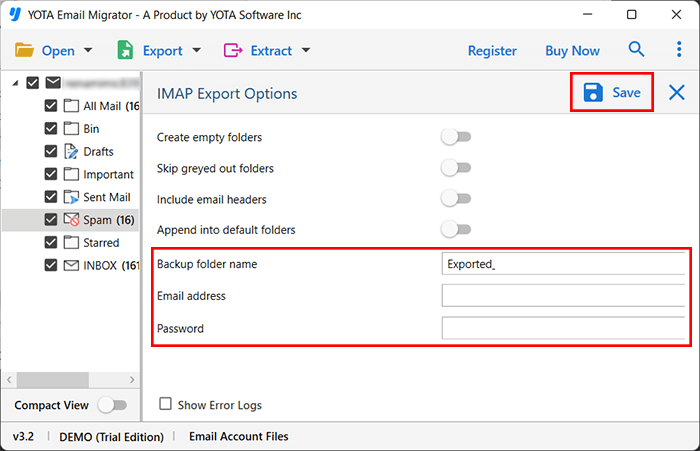
- Lastly, enter Roundcube account details and hit the Save button.
That’s it! All your emails and attachments will be transferred easily to Roundcube.
Key Features of the Automated Tool
- Transfer all Gmail emails to Roundcube quickly and safely.
- Export Gmail to PST, MBOX, EML, CSV, HTML, and PDF.
- Keep the folder structure same even after complete migration.
- No file size limit on moving your data.
- Offers date filters to move only specific emails.
- Maintain 100% data integrity and email formatting.
- Free demo available to test before purchasing the tool.
Conclusion
In this blog, we explored different ways to move Gmail emails to Roundcube. The manual method works for fewer emails to export, but it can be slow and may miss folders or attachments. For a complete and direct transfer, using a reliable tool provides better results. You can try Gmail Migrator to export your Gmail mailbox without any data loss.
Frequently Asked Questions
What is the easiest way to export Gmail emails to Roundcube?
You can either use the manual Google Takeout method or use an automated Gmail Migration tool for a quicker and error-free transfer.
Is the software is safe to import emails and attachments?
Yes, the tool is highly safe and secured to migrate your Gmail data. The tool does not store your account details or any crucial information in its database, so it is highly trusted software among IT experts.
Is it possible to export attachments and calendar using the utility?
Yes, the utility lets you export all attachments and calendar without losing anything.